
7. Connecting to the Web Admin Interface
- 1.Start a web browser on a computer that is connected with the Peplink router through the LAN.
- 2.To connect to the router’s web admin interface, enter the following LAN IP address in the address field of the web browser:
http://192.168.50.1
(This is the default LAN IP address for Peplink routers.)
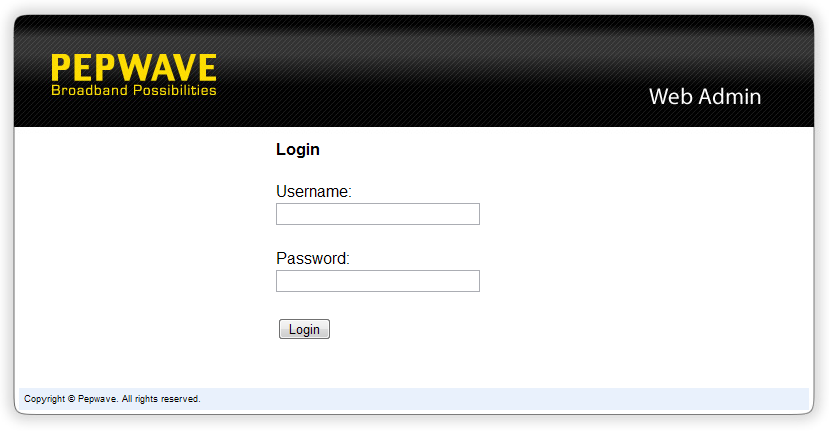
- 3.Enter the following to access the web admin interface.
Username: admin
Password: admin
(This is the default username and password for Peplink routers).
- You must change the default password on the first successful logon.
- Password requirements are: A minimum of 10 lower AND upper case characters, including at least 1 number.
- When HTTP is selected, the URL will be redirected to HTTPS by default.
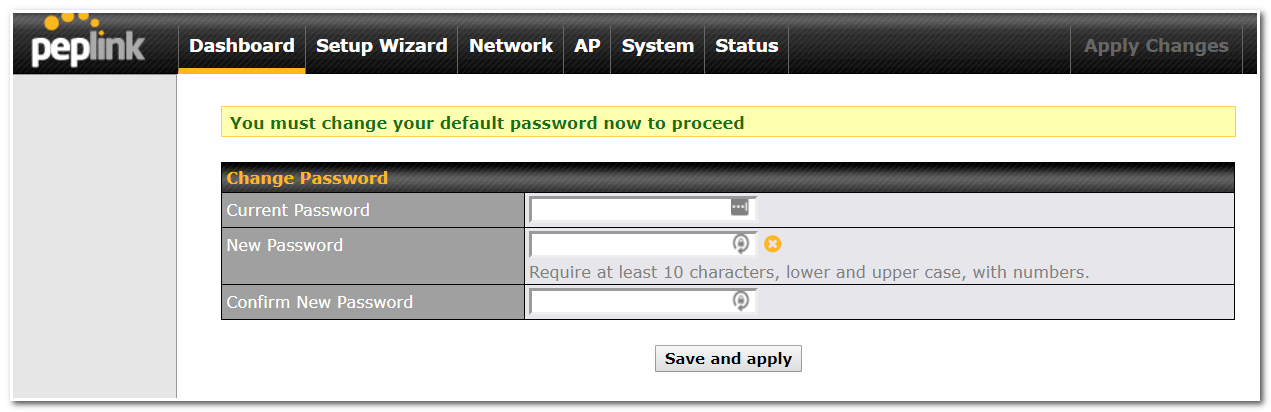
After successful login, the Dashboard of the web admin interface will be displayed.
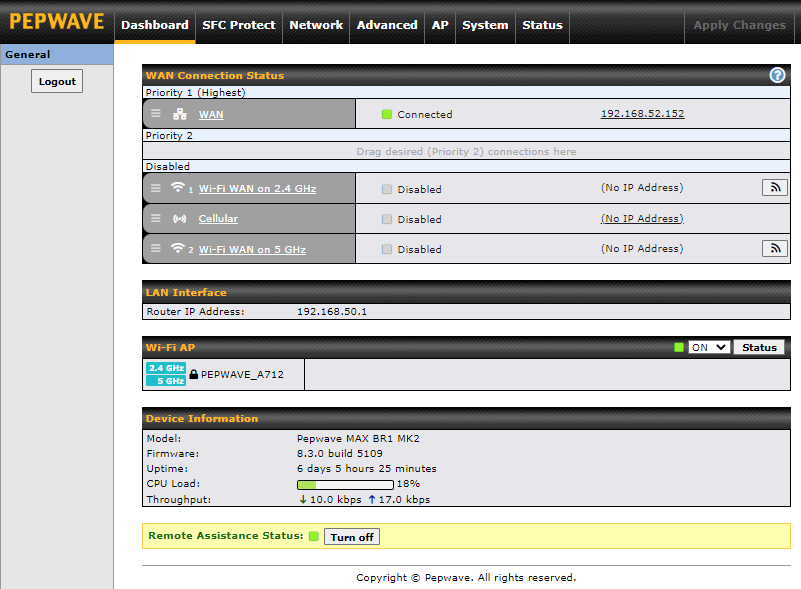
The Dashboard shows current WAN, LAN, and Wi-Fi AP statuses. Here, you can change WAN connection priority and switch on/off the Wi-Fi AP.
Device Information displays details about the device, including model name, firmware version, and uptime.
Important Note |
Configuration changes (e.g. WAN, LAN, admin settings, etc.) will take effect only after clicking the Save button at the bottom of each page. The Apply Changes button causes the changes to be saved and applied. |