
20. Firewall
A firewall is a mechanism that selectively filters data traffic between the WAN side (the Internet) and the LAN side of the network. It can protect the local network from potential hacker attacks, access to offensive websites, and/or other inappropriate uses.
The firewall functionality of Peplink routers supports the selective filtering of data traffic in both directions:
- Outbound (LAN to WAN)
- Inbound (WAN to LAN)
- Internal Network (VLAN to VLAN)
- Local Service
The firewall also supports the following functionality:
- Intrusion detection and DoS prevention
- Web blocking
With SpeedFusionTM enabled, the firewall rules also apply to VPN tunneled traffic.
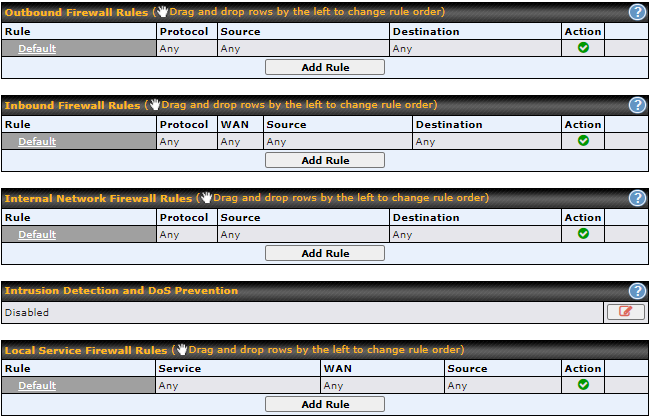
20.1. Access Rules
Outbound Firewall Rules
The outbound firewall settings are located at Advanced > Firewall > Access Rules.

To enable or disable the Outbound Firewall to manage device local network traffic, click on the help icon  and click here, the screen will show below.
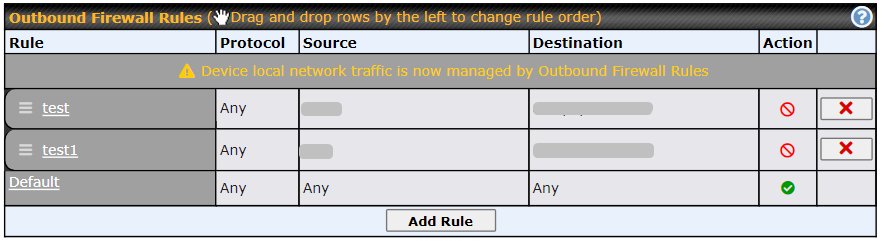
Note |
To utilize the Outbound Firewall Rule to block the Peplink device from contacting InControl 2, you may refer to the link below: https://forum.peplink.com/t/faq-prevent-device-reaching-incontrol-2./63f48fdfd466df34ab475f55/ |
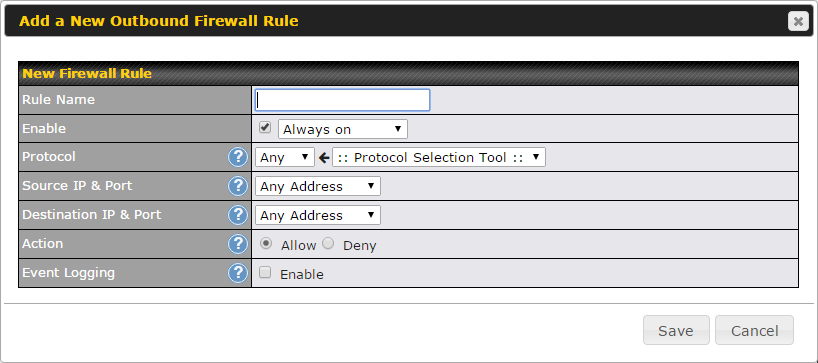
Click Add Rule to display the following screen:
Inbound Firewall Rules
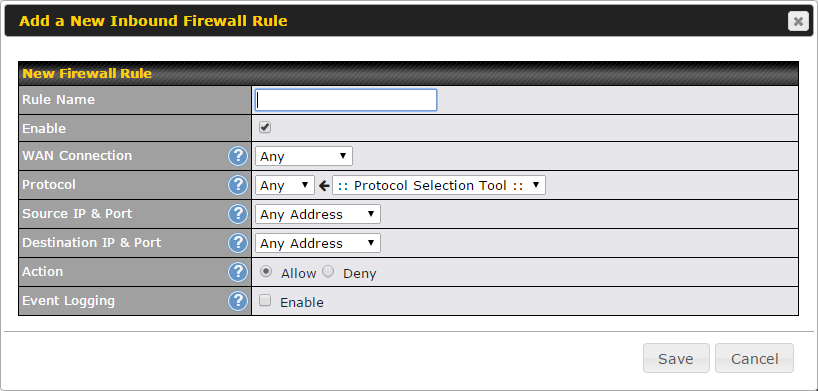
Inbound firewall settings are located at Advanced > Firewall > Access Rules.

Click Add Rule to display the following screen:
Internal Network Firewall Rules
Internal Network firewall settings are located at Advanced > Firewall > Access Rules.

Click Add Rule to display the following window:
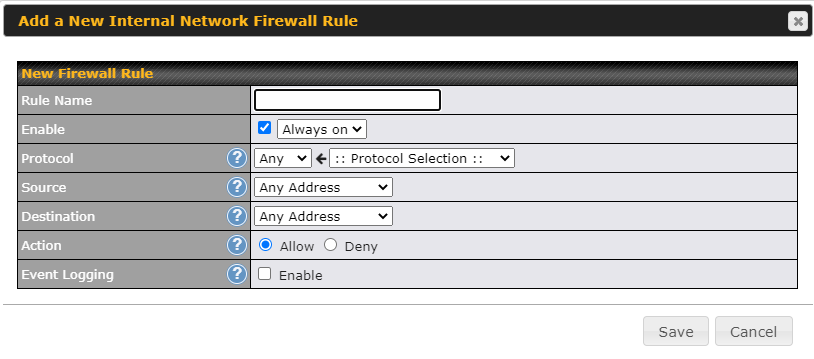
Inbound / Outbound / Internal Network Firewall Settings | |
Rule Name | This setting specifies a name for the firewall rule. |
Enable | This setting specifies whether the firewall rule should take effect. If the box is checked, the firewall rule takes effect. If the traffic matches the specified protocol/IP/port, actions will be taken by the Peplink router based on the other parameters of the rule. If the box is not checked, the firewall rule does not take effect. The Peplink router will disregard the other parameters of the rule. Click the dropdown menu next to the checkbox to place this firewall rule on a time schedule. |
WAN Connection (Inbound) | Select the WAN connection that this firewall rule should apply to. |
Protocol | This setting specifies the protocol to be matched. Via a drop-down menu, the following protocols can be specified:
Alternatively, the Protocol Selection Tool drop-down menu can be used to automatically fill in the protocol and port number of common Internet services (e.g., HTTP, HTTPS, etc.). After selecting an item from the Protocol Selection Tool drop-down menu, the protocol and port number remain manually modifiable. |
Source IP & Port | This specifies the source IP address(es) and port number(s) to be matched for the firewall rule. A single address, or a network, can be specified as the Source IP & Port setting, as indicated by the following screenshot:
In addition, a single port, or a range of ports, can be specified for the Source IP & Port settings. |
Destination IP & Port | This specifies the destination IP address(es) and port number(s) to be matched for the firewall rule. A single address, or a network, can be specified as the Destination IP & Port setting, as indicated by the following screenshot:
In addition, a single port, or a range of ports, can be specified for the Destination IP & Port settings. |
Action | This setting specifies the action to be taken by the router upon encountering traffic that matches both of the following:
With the value of Allow for the Action setting, the matching traffic passes through the router (to be routed to the destination). If the value of the Action setting is set to Deny, the matching traffic does not pass through the router (and is discarded). |
Event Logging | This setting specifies whether or not to log matched firewall events. The logged messages are shown on the page Status>Event Log. A sample message is as follows: Aug 13 23:47:44 Denied CONN=Ethernet WAN SRC=20.3.2.1 DST=192.168.1.20 LEN=48 PROTO=TCP SPT=2260 DPT=80
|


Click Save to store your changes. To create an additional firewall rule, click Add Rule and repeat the above steps.
To change a rule’s priority, simply drag and drop the rule:
- Hold the left mouse button on the rule.
- Move it to the desired position.
- Drop it by releasing the mouse button.
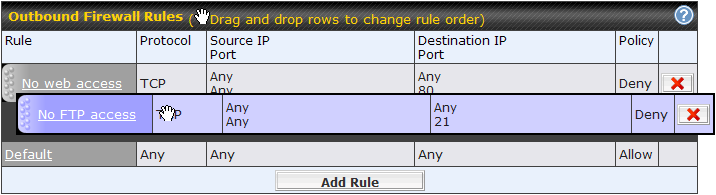
To remove a rule, click the  button.
Rules are matched from top to bottom. If a connection matches any one of the upper rules, the matching process will stop. If none of the rules match, the Default rule will be applied. By default, the Default rule is set as Allow for Outbound, Inbound and Internal Network access.
Tip |
If the default inbound rule is set to Allow for NAT-enabled WANs, no inbound Allow firewall rules will be required for inbound port forwarding and inbound NAT mapping rules. However, if the default inbound rule is set as Deny, a corresponding Allow firewall rule will be required. |
Intrusion Detection and DoS Prevention

Peplink routers can detect and prevent intrusions and denial-of-service (DoS) attacks from the Internet. To turn on this feature, click  , check the Enable check box, and press the Save button.
When this feature is enabled, the Peplink router will detect and prevent the following kinds of intrusions and denial-of-service attacks.
- Port scan
- NMAP FIN/URG/PSH
- Xmas tree
- Another Xmas tree
- Null scan
- SYN/RST
- SYN/FIN
- SYN flood prevention
- Ping flood attack prevention
Local Service Firewall Rules
For every WAN inbound traffic to local service, rules will be matched to take the defined action. The Local Service firewall settings are located at Advanced > Firewall > Access Rules.

Click Add Rule to display the following window:
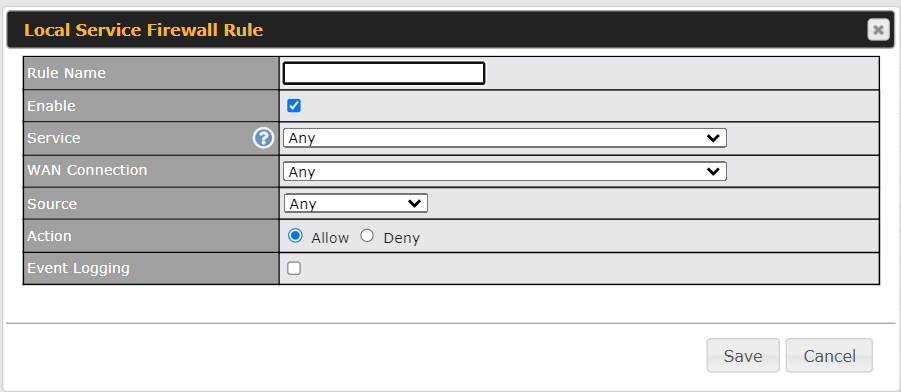
Local Service Firewall Settings | |
Rule Name | This setting specifies a name for the firewall rule. |
Enable | This setting specifies whether the firewall rule should take effect. If the box is checked, the firewall rule takes effect. If the traffic matches the specified protocol/IP/port, actions will be taken by the Peplink device based on the other parameters of the rule. If the box is not checked, the firewall rule does not take effect. The Peplink device will disregard the other parameters of the rule. Click the dropdown menu next to the checkbox to place this firewall rule on a time schedule. |
Service | This option allows you to define the supported local service to be matched. If Any is chosen, the firewall rule will match to all supported local services from the list. Via a drop-down menu, the following services can be specified:
|
WAN Connection | Select the WAN connection that this firewall rule should apply to. |
Source | This specifies the source IP address and IP Network to be matched for the firewall rule. |
Action | With the value of Allow for the Action setting, the matching traffic passes through the router (to be routed to the destination). If the value of the Action setting is set to Deny, the matching traffic does not pass through the router (and is discarded). |
Event Logging | This setting specifies whether or not to log matched firewall events. The logged messages are shown on the page Status>Event Log. A sample message is as follows: Aug 13 23:47:44 Denied CONN=Ethernet WAN SRC=20.3.2.1 DST=192.168.1.20 LEN=48 PROTO=TCP SPT=2260 DPT=80
|
20.2. Content Blocking
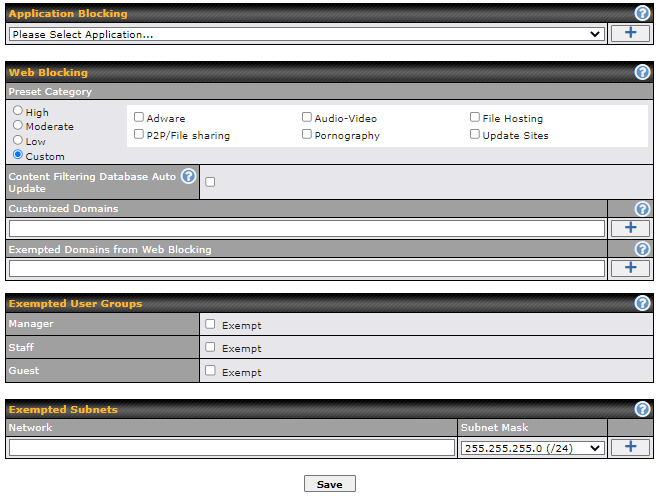
20.2.1. Application Blocking
Choose applications to be blocked from LAN/PPTP/SpeedFusion VPN peer clients' access, except for those on the Exempted User Groups or Exempted Subnets defined below.
20.2.2. Web Blocking
Defines website domain names to be blocked from LAN/PPTP/SpeedFusion VPN peer clients' access except for those on the Exempted User Groups or Exempted Subnets defined below.
If "foobar.com" is entered, any web site with a host name ending in foobar.com will be blocked, e.g. www.foobar.com, foobar.com, etc. However, "myfoobar.com" will not be blocked.
You may enter the wild card ".*" at the end of a domain name to block any web site with a host name having the domain name in the middle. If you enter "foobar.*", then "www.foobar.com", "www.foobar.co.jp", or "foobar.co.uk" will be blocked. Placing the wild card in any other position is not supported.
The device will inspect and look for blocked domain names on all HTTP and HTTPS traffic.
20.2.3. Customized Domains
Enter an appropriate website address, and the Peplink MAX will block and disallow LAN/PPTP/SpeedFusionTM peer clients to access these websites.
You may enter the wild card ".*" at the end of a domain name to block any web site with a host name having the domain name in the middle. For example, if you enter "foobar.*," then "www.foobar.com," "www.foobar.co.jp," or "foobar.co.uk" will be blocked. Placing the wild card in any other position is not supported.
The Peplink MAX will inspect and look for blocked domain names on all HTTP traffic. Secure web (HTTPS) traffic is not supported.
20.2.4. Exempted User Groups
Check and select pre-defined user group(s) who can be exempted from the access blocking rules. User groups can be defined at QoS>User Groups section.
20.2.5. Exempted Subnets
With the subnet defined in the field, clients on the particular subnet(s) can be exempted from the access blocking rules.