
22. Remote User Access
A remote-access VPN connection allows an individual user to connect to a private business network from a remote location using a laptop or desktop computer connected to the Internet. Networks routed by a Peplink router can be remotely accessed via OpenVPN, L2TP with IPsec, PPTP or WireGuard. To configure this feature, navigate to Network > Remote User Access and choose the required VPN type.
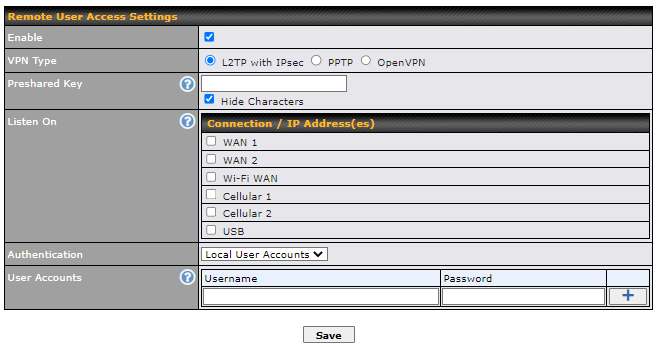
Remote User Access Settings | |
Enable | When this box is checked, this Remote User Access profile will be enabled. |
VPN Type | This field allows you to select the VPN type for the remote user access connection. The available options are:
If L2TP with IPsec is selected, it may need to enter the pre-shared key for the remote user access.
If PPTP is selected, there is no additional configuration required. The Point-to-Point Tunneling Protocol (PPTP) is an obsolete method for implementing virtual private networks. PPTP has many well known security issues.
If OpenVPN is selected, the OpenVPN Client profile can be downloaded from the Status > Device page after the configuration has been saved.
For WireGuard, select one WAN connection and one interface IP only. Username and a static IP will need to be entered to obtain the client profile.
|
Pre-shared Key | If L2TP with IPsec is selected in the VPN Type, enter the pre shared key in the text field. Please note that remote devices will need this preshared key to access the device. |
Disabled Weak Ciphers | You may click the When checked, weak ciphers such as 3DES will be disabled. Please note: Legacy and Android devices may not be able to connect. |
Connection Security Refresh | If OpenVPN is selected in the VPN Type, this setting is for specifying the interval for refreshing the connection. |
Listen On | This setting is for specifying the WAN IP addresses that allow remote user access. |
Port | If OpenVPN is selected in the VPN Type, the Port setting specifies the port(s) that correspond to the service. |
Authentication | Determine the method of authenticating remote users:
This setting allows you to define the Remote User Accounts. Click Add Note: The username must contain lowercase letters, numerics, underscore(_), dash(-), at sign(@), and period(.) only. |




 When WireGuard is selected, the user may obtain the WireGuard client profile from the status page.


 button to show in the Pre-shared key and enable this option.

 to input username and password to create an account. After adding the user accounts, you can click on a username to edit the account password.