
19. QoS
19.1. User Groups
LAN and PPTP clients can be categorized into three user groups: Manager, Staff, and Guest. This menu allows you to define rules and assign client IP addresses or subnets to a user group. You can apply different bandwidth and traffic prioritization policies on each user group in the Bandwidth Control and Application sections (note that the options available here vary by model).
The table is automatically sorted by rule precedence. The smaller and more specific subnets are put towards the top of the table and have higher precedence; larger and less specific subnets are placed towards the bottom.
Click the Add button to define clients and their user group. Click the  button to remove the defined rule. Two default rules are pre-defined and put at the bottom. They are All DHCP reservation clients and Everyone, and they cannot be removed. The All DHCP reservation client represents the LAN clients defined in the DHCP Reservation table on the LAN settings page. Everyone represents all clients that are not defined in any rule above. Click on a rule to change its group.
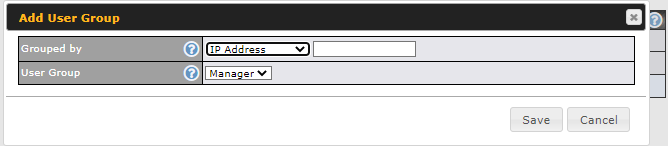
Add / Edit User Group | |
Grouped by | From the drop-down menu, choose whether you are going to define the client(s) by an IP Address or a Subnet. If IP Address is selected, enter a name defined in DHCP reservation table or a LAN client's IP address. If Subnet is selected, enter a subnet address and specify its subnet mask. |
User Group | This field is to define which User Group the specified subnet / IP address belongs to. |
Once users have been assigned to a user group, their internet traffic will be restricted by rules defined for that particular group. Please refer to the following two sections for details.
19.2. Bandwidth Control
This section is to define how much minimum bandwidth will be reserved to each user group when a WAN connection is in full load. When this feature is enabled, a slider with two indicators will be shown. You can move the indicators to adjust each group's weighting. The lower part of the table shows the corresponding reserved download and upload bandwidth value of each connection.
By default, 50% of bandwidth has been reserved for Manager, 30% for Staff, and 20% for Guest.
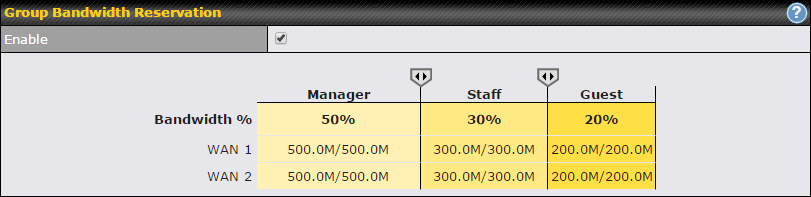
You can define a maximum download speed (over all WAN connections) and upload speed (for each WAN connection) that each individual Staff and Guest member can consume. No limit can be imposed on individual Managers. By default, download and upload bandwidth limits are set to unlimited (set as 0).

19.3. Application Queue
This section is to define the QoS Application Queue. You can set guaranteed bandwidth for a queue and assign it to applications.

Click the Add button to create the QoS Application Queue.
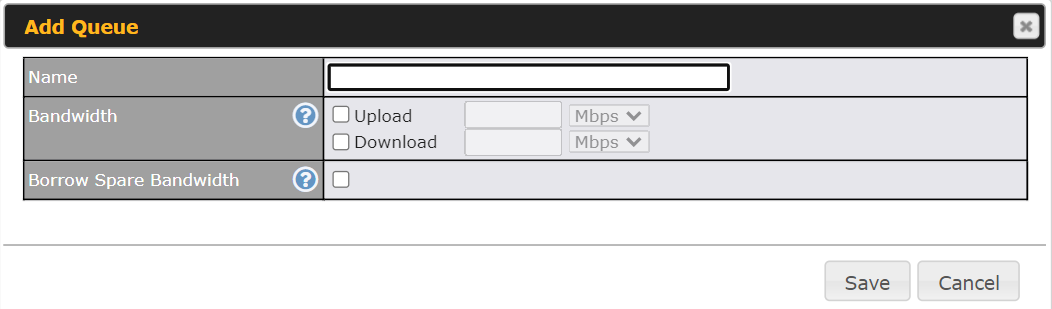
Add Queue | |
Name | This setting specifies a name for the QoS Application Queue. |
Bandwidth | Bandwidth to be reserved (for each WAN connection) for this queue. When WAN is congested, this bandwidth will remain available for applications assigned to this queue. |
Borrow Spare Bandwidth | Enable this option if you want this queue to utilize WAN's unused bandwidth. |
19.4. Application
19.4.1. Application Prioritization
On many Peplink routers, you can choose whether to apply the same prioritization settings to all user groups or customize the settings for each group.

Three application priority levels can be set: ↑High,━ Normal, and↓Low. Peplink routers can detect various application traffic types by inspecting the packet content. Select an application by choosing a supported application, or by defining a custom application manually. The priority preference of supported applications is placed at the top of the table. Custom applications are at the bottom.

19.4.2. Prioritization for Custom Applications
Click the Add button to define a custom application. Click the button  in the Action column to delete the custom application in the corresponding row.
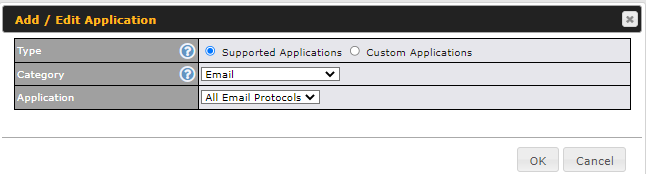
When Supported Applications is selected, the Peplink router will inspect network traffic and prioritize the selected applications. Alternatively, you can select Custom Applications and define the application by providing the protocol, scope, port number, and DSCP value.
19.4.3. DSL/Cable Optimization
DSL/cable-based WAN connections have lower upload bandwidth and higher download bandwidth. When a DSL/cable circuit's uplink is congested, the download bandwidth will be affected. Users will not be able to download data at full speed until the uplink becomes less congested. DSL/Cable Optimization can relieve such an issue. When it is enabled, the download speed will become less affected by the upload traffic. By default, this feature is disabled.

19.4.4. SpeedFusion VPN Traffic Optimization
Enable this option to allow SpeedFusion VPN traffic to have the highest priority when WAN is congested.
