
11. SpeedFusion VPN
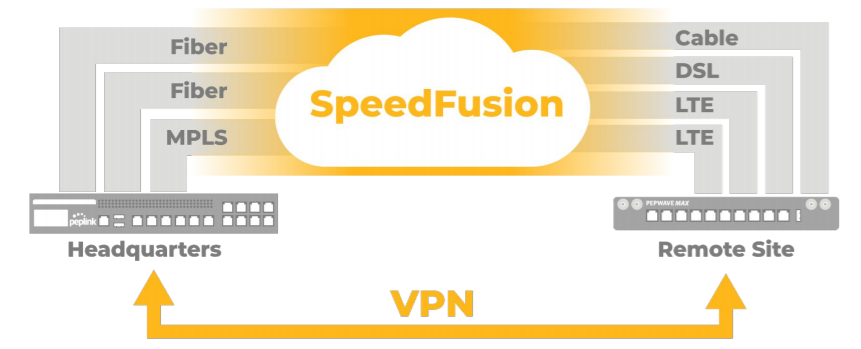
Peplink bandwidth bonding SpeedFusionTM is our patented technology that enables our SD-WAN routers to bond multiple Internet connections to increase site-to-site bandwidth and reliability. SpeedFusion functionality securely connects your Peplink router to another Peplink or Peplink device (Peplink Balance 210/310/380/580/710/1350 only). Data, voice, or video communications between these locations are kept confidential across the public Internet.
Bandwidth bonding SpeedFusionTM is specifically designed for multi-WAN environments. In case of failures and network congestion at one or more WANs, other WANs can be used to continue carrying the network traffic.
Different models of our SD-WAN routers have different numbers of site-to-site connections allowed. End-users who need to have more site-to-site connections can purchase a SpeedFusion license to increase the number of site-to-site connections allowed.
Peplink routers can aggregate all WAN connections’ bandwidth for routing SpeedFusionTM traffic. Unless all the WAN connections of one site are down, Peplink routers can keep the VPN up and running.
VPN bandwidth bonding is supported in Firmware 5.1 or above. All available bandwidth will be utilized to establish the VPN tunnel, and all traffic will be load balanced at packet level across all links. VPN bandwidth bonding is enabled by default.
11.1. SpeedFusion VPN
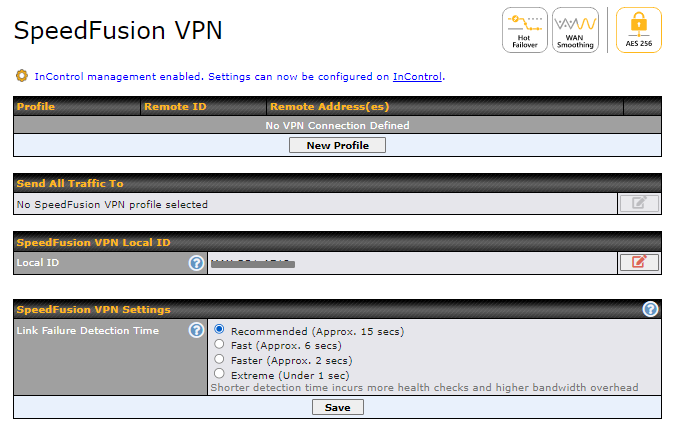
To configure SpeedFusion VPN, navigate to Advanced > SpeedFusion VPN.
The local LAN subnet and subnets behind the LAN (defined under Static Route on the LAN settings page) will be advertised to the VPN. All VPN members (branch offices and headquarters) will be able to route to local subnets.
Note that all LAN subnets and the subnets behind them must be unique. Otherwise, VPN members will not be able to access each other.
All data can be routed over the VPN using the 256-bit AES encryption standard. To configure, navigate to Advanced > SpeedFusion VPN and click the New Profile button to create a new VPN profile (you may have to first save the displayed default profile in order to access the New Profile button). Each profile specifies the settings for making VPN connection with one remote Peplink or Peplink device. Note that available settings vary by model.
A list of defined SpeedFusion connection profiles and a Link Failure Detection Time option will be shown. Click the New Profile button to create a new VPN connection profile for making a VPN connection to a remote Peplink or Peplink device via the available WAN connections. Each profile is for making a VPN connection with one remote Peplink or Peplink Device.
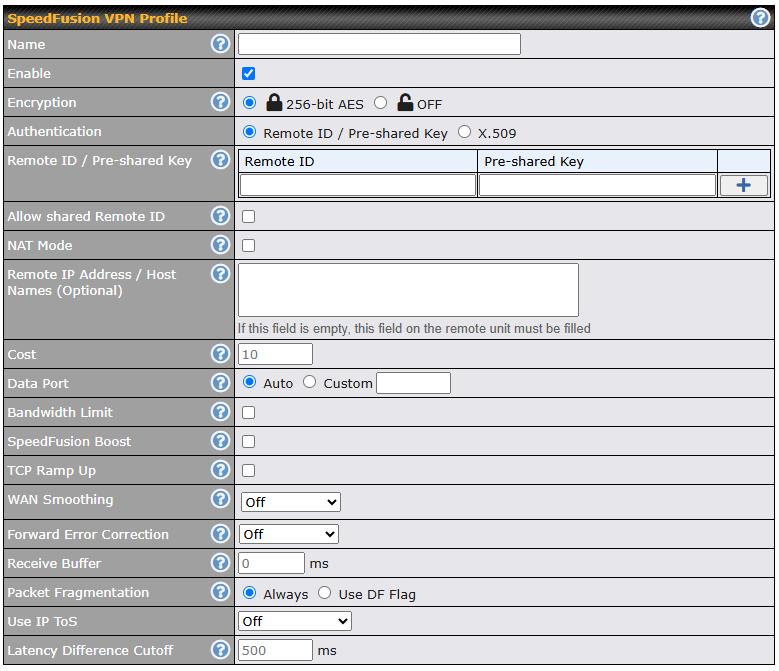
SpeedFusion VPN Profile | |
Name | This field is for specifying a name to represent this profile. The name can be any combination of alphanumeric characters (0-9, A-Z, a-z), underscores (_), dashes (-), and/or non-leading/trailing spaces ( ). Click the |
Enable | When this box is checked, this VPN connection profile will be enabled. Otherwise, it will be disabled. |
Encryption | By default, VPN traffic is encrypted with 256-bit AES. If Off is selected on both sides of a VPN connection, no encryption will be applied. |
Authentication | Select from By Remote ID Only, Preshared Key, or X.509 to specify the method the Peplink Balance will use to authenticate peers. When selecting By Remote ID Only, be sure to enter a unique peer ID number in the Remote ID field. |
Remote ID / Pre-shared Key | This optional field becomes available when Remote ID / Pre-shared Key is selected as the Peplink Balance’s VPN Authentication method, as explained above. Pre-shared Key defines the pre-shared key used for this particular VPN connection. The VPN connection’s session key will be further protected by the pre-shared key. The connection will be up only if the pre-shared keys on each side match. When the peer is running firmware 5.0+, this setting will be ignored. Enter Remote IDs either by typing out each Remote ID and Pre-shared Key, or by pasting a CSV. If you wish to paste a CSV, click the |
Remote ID/Remote Certificate | These optional fields become available when X.509 is selected as the Peplink Balance’s VPN authentication method, as explained above. To authenticate VPN connections using X.509 certificates, copy and paste certificate details into these fields. To get more information on a listed X.509 certificate, click the Show Details link below the field. |
Allow Shared Remote ID | When this option is enabled, the router will allow multiple peers to run using the same remote ID. |
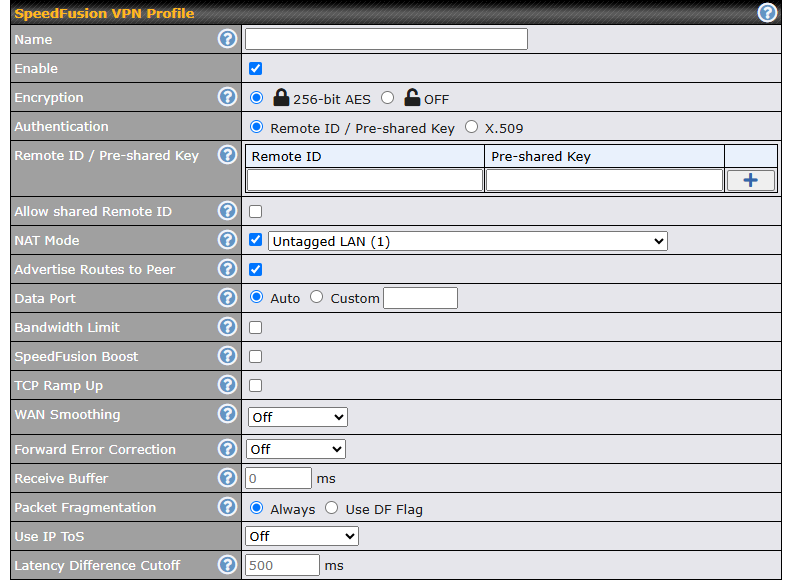
NAT Mode | Check this box to allow the local DHCP server to assign an IP address to the remote peer. When NAT Mode is enabled, all remote traffic over the VPN will be tagged with the assigned IP address using network address translation. |
Remote IP Address / Host Names (Optional) | If NAT Mode is not enabled, you can enter a remote peer’s WAN IP address or hostname(s) here. If the remote uses more than one address, enter only one of them here. Multiple hostnames are allowed and can be separated by a space character or carriage return. Dynamic-DNS host names are also accepted. This field is optional. With this field filled, the Peplink Balance will initiate connection to each of the remote IP addresses until it succeeds in making a connection. If the field is empty, the Peplink Balance will wait for connection from the remote peer. Therefore, at least one of the two VPN peers must specify this value. Otherwise, VPN connections cannot be established. Click the |
Cost | Define path cost for this profile. OSPF will determine the best route through the network using the assigned cost. Default: 10 |
Advertise Routes to Peer | If NAT mode is enabled, the user can choose to enable this option.
By default, this device advertises routes to the remote peer. The remote peer does not advertise routes to this device because it is behind NAT. Uncheck this option to stop route advertisement. Note that an Outbound Policy on the remote peer may be needed to route traffic to destinations outside the DHCP subnet. |
Data Port | This field is used to specify a UDP port number for transporting outgoing VPN data. If Default is selected, UDP port 4500 will be used. Port 32015 will be used if the remote unit uses Firmware prior to version 5.4 or if port 4500 is unavailable. If Custom is selected, enter an outgoing port number from 1 to 65535. Click the |
Bandwidth Limit | Define maximum download and upload speed to each individual peer. This functionality requires the peer to use PepVPN version 4.0.0 or above. |
SpeedFusion Boost | Enabling this option helps improve throughput when the connection suffers from packet loss and high latency. |
TCP Ramp Up | For every new TCP connection, Normal WAN Smoothing will be applied for a short period of time to prevent packet loss during TCP Slow Start, which in some conditions will ramp up TCP throughput faster. |
WAN Smoothing | While using PepVPN, utilize multiple WAN links to reduce the impact of packet loss and get the lowest possible latency at the expense of extra bandwidth consumption. This is suitable for streaming applications where the average bitrate requirement is much lower than the WAN’s available bandwidth. Off – Disable WAN Smoothing. Normal – The total bandwidth consumption will be at most 2x of the original data traffic. Medium – The total bandwidth consumption will be at most 3x of the original data traffic. High – The total bandwidth consumption depends on the number of connected active tunnels. |
Forward Error Correction | Forward Error Correction (FEC) can help to recover packet loss by using extra bandwidth to send redundant data packets. Higher FEC level will recover packets on a higher loss rate link. For more information on FEC and Adaptive FEC, refer to this KB article. Require peer using PepVPN version 8.0.0 and above. |
Receive Buffer | Receive Buffer can help to reduce out-of-order packets and jitter, but will introduce extra latency to the tunnel. Default is 0 ms, which disables the buffer, and maximum buffer size is 2000 ms. |
Packet Fragmentation | If the packet size is larger than the tunnel’s MTU, it will be fragmented inside the tunnel in order to pass through. Select Always to fragment any packets that are too large to send, or Use DF Flag to only fragment packets with Don’t Fragment bit cleared. This can be useful if your application does Path MTU Discovery, usually sending large packets with DF bit set, if allowing them to go through by fragmentation, the MTU will not be detected correctly. |
Use IP ToS^ | If Use IP ToS is enabled, the ToS value of the data packets will be copied to the PepVPN header during encapsulation. |
Latency Difference Cutoff^ | Traffic will be stopped for links that exceed the specified millisecond value with respect to the lowest latency link. (e.g. Lowest latency is 100ms, a value of 500ms means links with latency 600ms or more will not be used) |
 icon next to the SpeedFusion VPN Profile title bar to use the IP ToS field of your data packet on SpeedFusion VPN WAN traffic.
 icon next to the “Remote ID / Preshared Key” setting.
 icon to customize the handshake port of the remote Host (TCP).
 icon to configure data stream using TCP protocol [EXPERIMENTAL]. In the case TCP protocol is used, the exposed TCP session option can be authorised to work with TCP accelerated WAN link.
^ Advanced feature, please click the  button on the top right-hand corner to activate.
To enable Layer 2 Bridging between SpeedFusion VPN profiles, navigate to Network > LAN > Basic Settings > *LAN Profile Name*.

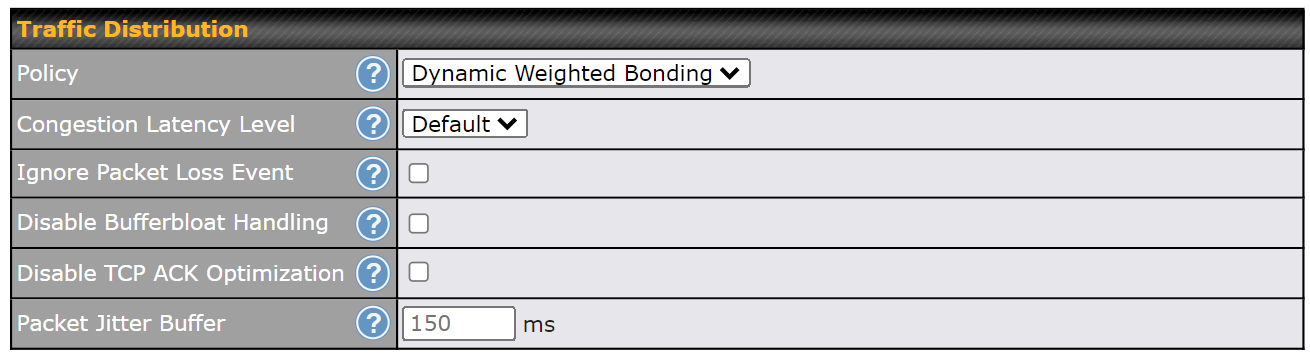
Traffic Distribution | |
Policy | This option allows you to select the desired out-bound traffic distribution policy:
By default, Bonding is selected as a traffic distribution policy. |
Congestion Latency Level | For most WANs, especially on cellular networks, the latency will increase when the link becomes more congested. Setting the Congestion Latency Level to Low will treat the link as congested more aggressively. Setting it to High will allow the latency to increase more before treating it as congested. |
Ignore Packet Loss Event | By default, when there is packet loss, it is considered as a congestion event. If this is not the case, select this option to ignore the packet loss event. |
Disable Bufferbloat Handling | Bufferbloat is a phenomenon on the WAN side when it is congested. The latency can become very high due to buffering on the uplink. By default, the Dynamic Weighted Bonding policy will try its best to mitigate bufferbloat by reducing TCP throughput when the WAN is congested. However, as a side effect, the tunnel might not achieve maximum bandwidth. Selecting this option will disable the bufferbloat handling mentioned above. |
Disable TCP ACK Optimization | By default, TCP ACK will be forwarded to remote peers as fast as possible. This will consume more bandwidth, but may help to improve TCP performance as well. Selecting this option will disable the TCP ACK optimization mentioned above. |
Packet Jitter Buffer | The default jitter buffer is 150ms, and can be modified from 0ms to 500ms. The jitter buffer may increase the tunnel latency. If you want to keep the latency as low as possible, you can set it to 0ms to disable the buffer. Note: If the Receive Buffer is set, the Packet Jitter Buffer will be automatically disabled. |
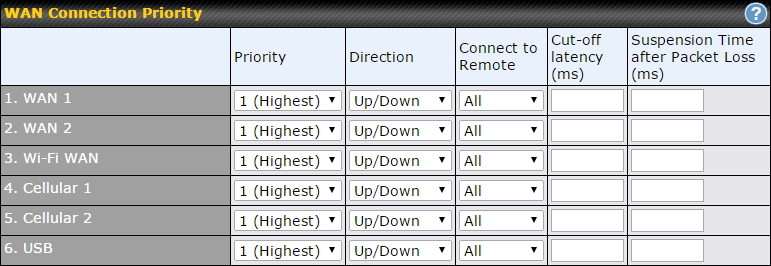
WAN Connection Priority | |
WAN Connection Priority | If your device supports it, you can specify the priority of WAN connections to be used for making VPN connections. WAN connections set to OFF will never be used. Only available WAN connections with the highest priority will be used. To enable asymmetric connections, connection mapping to remote WANs, cut-off latency, and packet loss suspension time, click the |
 button.

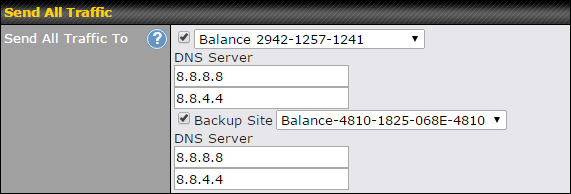
Send All Traffic To |
This feature allows you to redirect all traffic to a specified SpeedFusion VPN connection. Click the
You could also specify a DNS server to resolve incoming DNS requests. Click the checkbox next to Backup Site to designate a backup SpeedFusion profile that will take over, should the main SpeedFusion VPN connection fail. |
 button to select your connection and the following menu will appear:
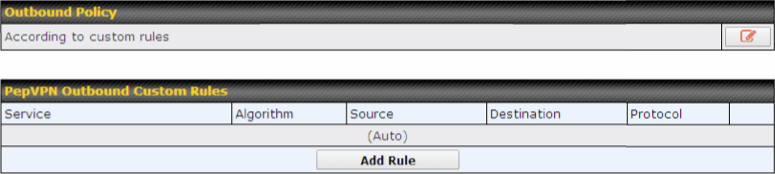
Outbound Policy/SpeedFusion VPN Outbound Custom Rules |
Some models allow you to set outbound policy and custom outbound rules from Advanced>SpeedFusion VPN.
|

SpeedFusion VPN Local ID |
The local ID is a text string to identify this local unit when establishing a VPN connection. When creating a profile on a remote unit, this local ID must be entered in the remote unit's Remote ID field. Click the |
 icon to edit Local ID.
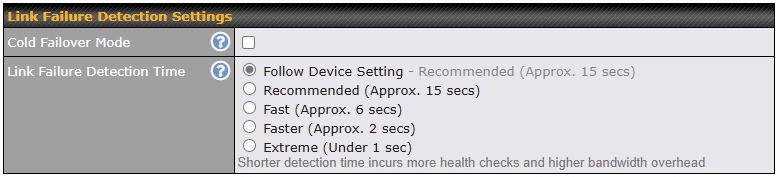
Link Failure Detection Settings | |
Cold Failover Mode | Enabling Cold Failover Mode turns off link failure detection for standby WAN-to-WAN links, helping to lower bandwidth consumption. |
Link Failure Detection Time | The bonded VPN can detect routing failures on the path between two sites over each WAN connection. Failed WAN connections will not be used to route VPN traffic. Health check packets are sent to the remote unit to detect any failure. The more frequently checks are sent, the shorter the detection time, although more bandwidth will be consumed. When Recommended (default) is selected, a health check packet is sent every five seconds, and the expected detection time is 15 seconds. When Fast is selected, a health check packet is sent every three seconds, and the expected detection time is six seconds. When Faster is selected, a health check packet is sent every second, and the expected detection time is two seconds. When Extreme is selected, a health check packet is sent every 0.1 second, and the expected detection time is less than one second. |
Important Note |
Peplink proprietary SpeedFusionTM uses TCP port 32015 and UDP port 4500 for establishing VPN connections. If you have a firewall in front of your Peplink devices, you will need to add firewall rules for these ports and protocols to allow inbound and outbound traffic to pass through the firewall. |
Tip |
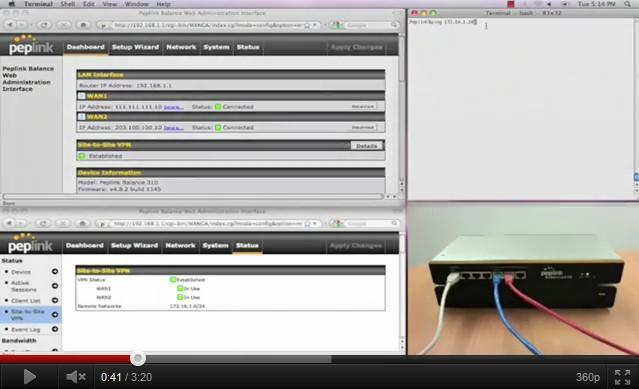
Want to know more about VPN sub-second session failover? Visit our YouTube Channel for a video tutorial!
|
11.2. The Peplink Router Behind a NAT Router
Peplink routers support establishing SpeedFusionTM over WAN connections which are behind a NAT (network address translation) router.
To enable a WAN connection behind a NAT router to accept VPN connections, you can configure the NAT router in front of the WAN connection to inbound port-forward TCP port 32015 to the Peplink router.
If one or more WAN connections on Unit A can accept VPN connections (by means of port forwarding or not), while none of the WAN connections on the peer Unit B can do so, you should enter all of Unit A’s public IP addresses or hostnames into Unit B’s Remote IP Addresses / Host Names field. Leave the field in Unit A blank. With this setting, a SpeedFusionTM connection can be set up and all WAN connections on both sides will be utilized.
See the following diagram for an example of this setup in use:
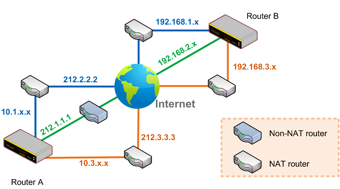
One of the WANs connected to Router A is non-NAT’d (212.1.1.1). The rest of the WANs connected to Router A and all WANs connected to Router B are NAT’d. In this case, the Peer IP Addresses / Host Names field for Router B should be filled with all of Router A’s hostnames or public IP addresses (i.e., 212.1.1.1, 212.2.2.2, and 212.3.3.3), and the field in Router A can be left blank. The two NAT routers on WAN1 and WAN3 connected to Router A should inbound port-forward TCP port 32015 to Router A so that all WANs will be utilized in establishing the VPN.
11.3. SpeedFusion VPN Status
SpeedFusion VPN status is shown in the Dashboard. The connection status of each connection profile is shown as below.

After clicking the Status button at the top right corner of the SpeedFusionTM table, you will be forwarded to Status > SpeedFusion VPN, where you can view subnet and WAN connection information for each VPN peer.
IP Subnets Must Be Unique Among VPN Peers |
The entire interconnected SpeedFusionTM network is a single non-NAT IP network. Avoid duplicating subnets in your sites to prevent connectivity problems when accessing those subnets. |