
15. Outbound Policy
Peplink routers can flexibly manage and load balance outbound traffic among WAN connections.
Important Note |
Outbound policy is applied only when more than one WAN connection is active. |
The settings for managing and load balancing outbound traffic are located at
Advanced > Outbound Policy.
15.1. Adding Rules for Outbound Policy
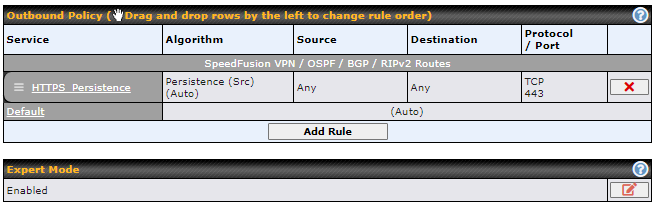
The menu underneath enables you to define Outbound policy rules:
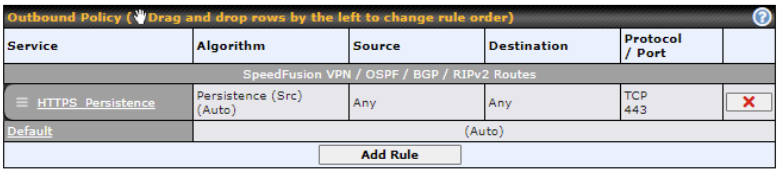
The bottom-most rule is Default. Edit this rule to change the device’s default manner of controlling outbound traffic for all connections that do not match any of the rules above it. Under the Service heading, click Default to change these settings.
To rearrange the priority of outbound rules, drag and drop them into the desired sequence.
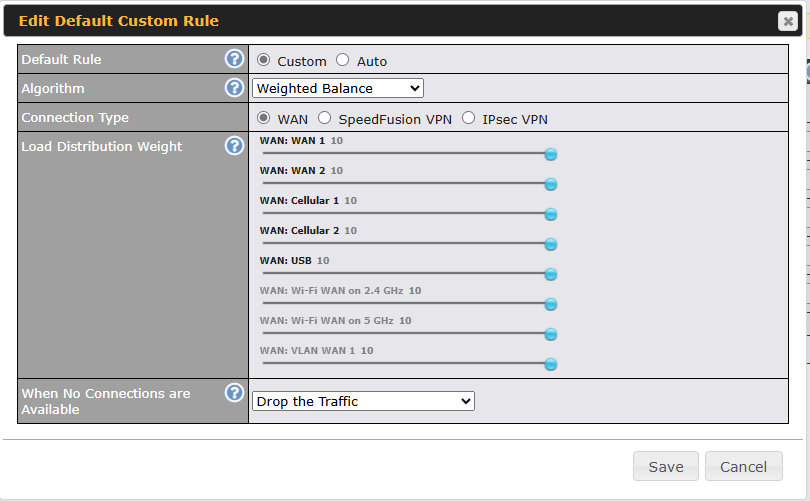
By default, Auto is selected as the Default Rule. You can select Custom to change the algorithm to be used. Please refer to the upcoming sections for the details on the available algorithms.
(Connection Type option available only when Weighted Balance is chosen and SpeedFusion or Route-based IPsec has been configured.)
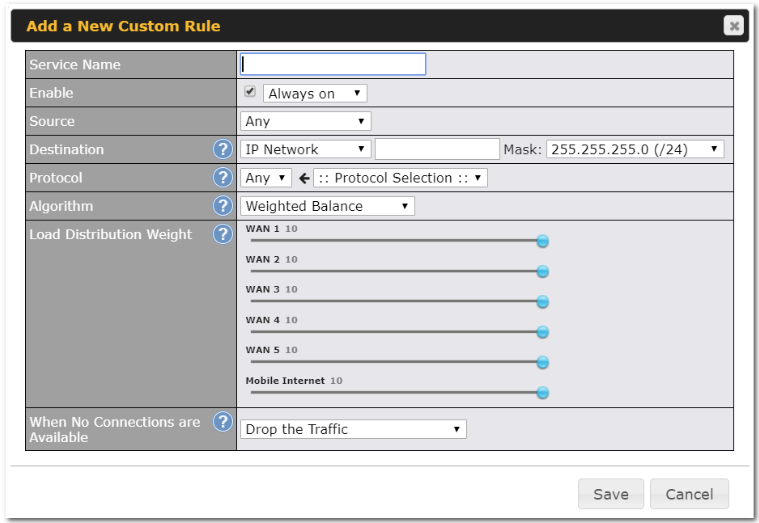
To create a custom rule, click Add Rule at the bottom of the table.
New Custom Rule Settings | |
Service Name | This setting specifies the name of the outbound traffic rule. |
Enable | This setting specifies whether the outbound traffic rule takes effect. When Enable is checked, the rule takes effect: traffic is matched and actions are taken by the Pepwave router based on the other parameters of the rule. When Enable is unchecked, the rule does not take effect: the Pepwave router disregards the other parameters of the rule. Click the drop-down menu next to the checkbox to apply a time schedule to this custom rule. |
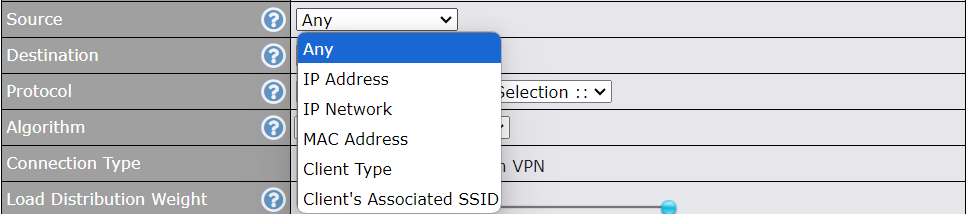
Source | This specifies the source IP address(es) and port number(s) to be matched for the firewall rule. The Source setting can include any of the following: IP Address, IP Network, MAC Address, Client Type (for Outbound and Internal Firewall only), and Client’s Associated SSID, as indicated in the following screenshots:
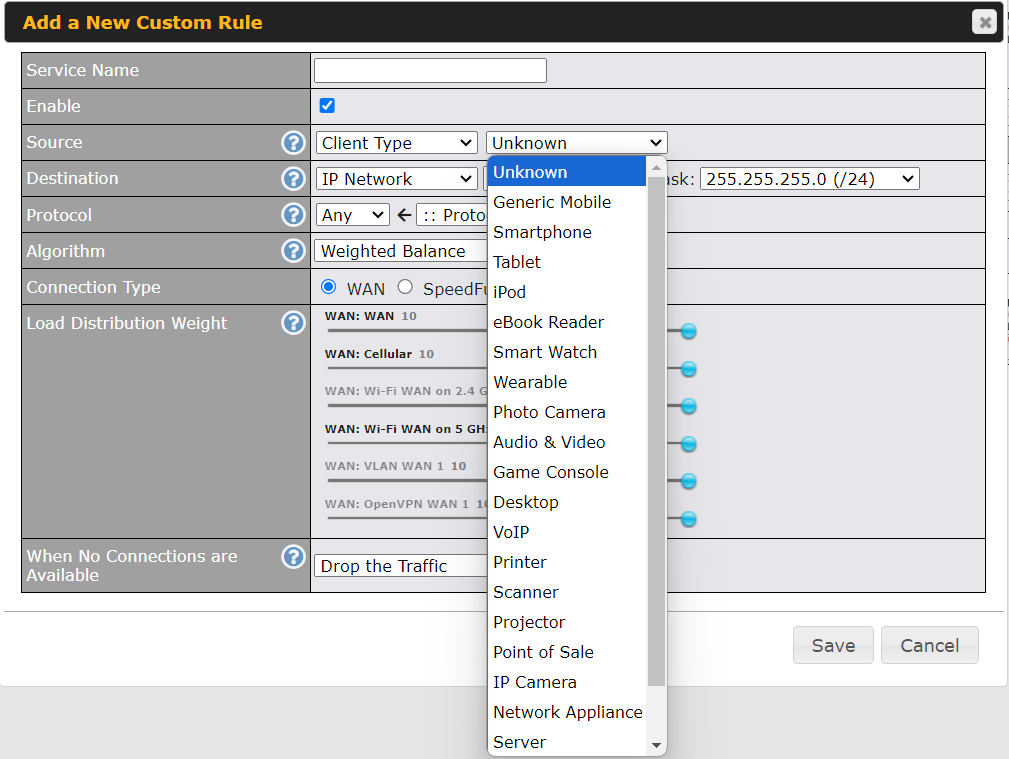
When you select Client Type as the Source, a drop-down list will appear for you to choose the different types of client devices.
In addition, a single port, or a range of ports, can be specified for the Source settings. |
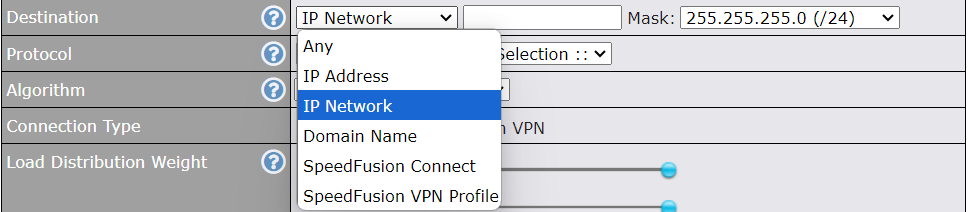
Destination | This specifies the destination IP address(es) and port number(s) to be matched for the firewall rule. Any, IP Address, IP Network, Domain Name, SpeedFusion Connect, and SpeedFusion VPN Profile can be specified as the Destination setting, as indicated in the following screenshots:
In addition, a single port or a range of ports can be specified for the settings. |
Protocol and Port | This setting specifies the IP protocol and port of traffic that matches this rule. Via a drop-down menu, the following protocols can be specified:
Alternatively, the Protocol Selection Tool drop-down menu can be used to automatically fill in the protocol and port number of common Internet services (e.g., HTTP, HTTPS, etc.). After selecting an item from the Protocol Selection Tool drop-down menu, the protocol and port number remain manually modifiable. |
Algorithm | This setting specifies the behavior of the Peplink router for the custom rule. One of the following values can be selected (Note that some Peplink routers provide only some of these options):
For a full explanation of each Algorithm, please see the following article: https://forum.peplink.com/t/exactly-how-do-peplinks-load-balancing-algorithmns-work/8059 |
Connection Type | This is to define which connection to forward the traffic to. The option is available only when Weighted Balance is chosen and SpeedFusion or Route-based IPsec has been configured. |
Load Distribution Weight | This is to define the outbound traffic weight ratio for each WAN connection. |
When No connections are available | This field allows you to configure the default action when all the selected Connections are not available. Drop the Traffic - Traffic will be discarded. Use Any Available Connections - Traffic will be routed to any available Connection, even if it is not selected in the list. Fall-through to Next Rule - Traffic will continue to match the next Outbound Policy rule just like this rule is inactive. |
Terminate Sessions on Connection Recovery | This setting specifies whether to terminate existing IP sessions on a less preferred WAN connection in the event that a more preferred WAN connection is recovered. This setting is applicable to the Priority algorithms. By default, this setting is disabled. In this case, existing IP sessions will not be terminated or affected when any other WAN connection is recovered. When this setting is enabled, existing IP sessions may be terminated when another WAN connection is recovered, such that only the preferred healthy WAN connection(s) is used at any point in time. |
15.1.1. Algorithm: Weighted Balance
This setting specifies the ratio of WAN connection usage to be applied on the specified IP protocol and port. This setting is applicable only when Algorithm is set to Weighted Balance.
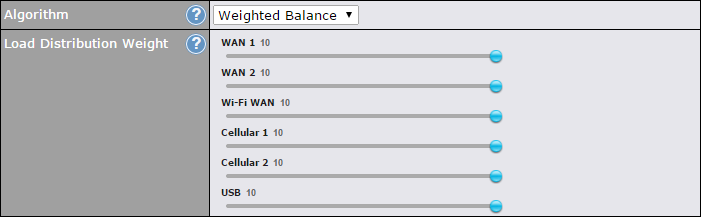
The amount of matching traffic that is distributed to a WAN connection is proportional to the weight of the WAN connection relative to the total weight. Use the sliders to change each WAN’s weight.
For example, with the following weight settings:
- Ethernet WAN1: 10
- Ethernet WAN2: 10
- Wi-Fi WAN: 10
- Cellular 1: 10
- Cellular 2: 10
- USB: 10
Total weight is 60 = (10 +10 + 10 + 10 + 10 + 10).
Matching traffic distributed to Ethernet WAN1 is 16.7% = (10 / 60) x 100%.
Matching traffic distributed to Ethernet WAN2 is 16.7% = (10 / 60) x 100%.
Matching traffic distributed to Wi-Fi WAN is 16.7% = (10 / 60) x 100%.
Matching traffic distributed to Cellular 1 is 16.7% = (10 / 60) x 100%.
Matching traffic distributed to Cellular 2 is 16.7% = (10 / 60) x 100%.
Matching traffic distributed to USB is 16.7% = (10 / 60) x 100%.
15.1.2. Algorithm: Persistence
The configuration of persistent services is the solution to the few situations where link load distribution for Internet services is undesirable. For example, for security reasons, many e-banking and other secure websites terminate the session when the client computer’s Internet IP address changes mid-session.
In general, different Internet IP addresses represent different computers. The security concern is that an IP address change during a session may be the result of an unauthorized intrusion attempt. Therefore, to prevent damages from the potential intrusion, the session is terminated upon the detection of an IP address change.
Peplink routers can be configured to distribute data traffic across multiple WAN connections. Also, the Internet IP depends on the WAN connections over which communication actually takes place. As a result, a LAN client computer behind the Peplink router may communicate using multiple Internet IP addresses. For example, a LAN client computer behind a Peplink router with three WAN connections may communicate on the Internet using three different IP addresses.
With the persistence feature, rules can be configured to enable client computers to persistently utilize the same WAN connections for e-banking and other secure websites. As a result, a client computer will communicate using one IP address, eliminating the issues mentioned above.
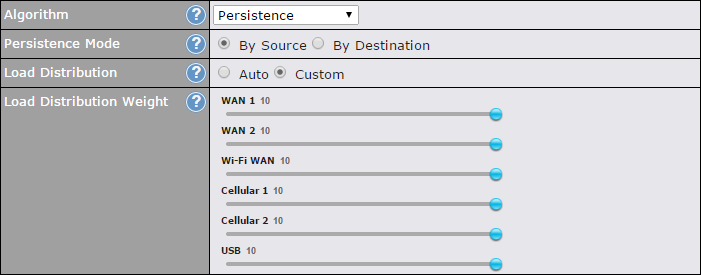
There are two persistent modes: By Source and By Destination.
By Source: | The same WAN connection will be used for traffic matching the rule and originating from the same machine, regardless of its destination. This option will provide the highest level of application compatibility. |
By Destination: | The same WAN connection will be used for traffic matching the rule, originating from the same machine, and going to the same destination. This option can better distribute loads to WAN connections when there are only a few client machines. |
The default mode is By Source. When there are multiple client requests, they can be distributed (persistently) to WAN connections with a weight. If you choose Auto in Load Distribution, the weights will be automatically adjusted according to each WAN’s Downstream Bandwidth (which is specified in the WAN settings page). If you choose Custom, you can customize the weight of each WAN manually by using the sliders.
15.1.3. Algorithm: Enforced
This setting specifies the WAN connection usage to be applied on the specified IP protocol and port. This setting is applicable only when Algorithm is set to Enforced.
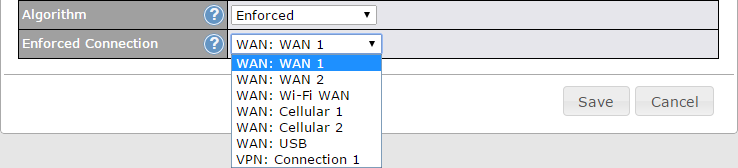
Matching traffic will be routed through the specified WAN connection, regardless of the health check status of the WAN connection. Starting from Firmware 5.2, outbound traffic can be enforced to go through a specified SpeedFusionTM connection.
15.1.4. Algorithm: Priority
This setting specifies the priority of the WAN connections used to route the specified network service. The highest priority WAN connection available will always be used for routing the specified type of traffic. A lower priority WAN connection will be used only when all higher priority connections have become unavailable.
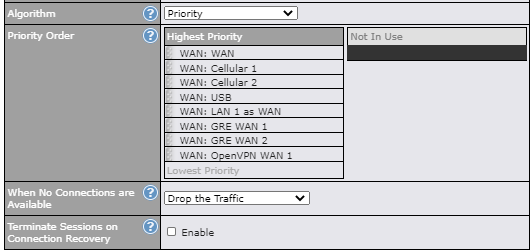
Starting from Firmware 5.2, outbound traffic can be prioritized to go through SpeedFusionTM connection(s). By default, VPN connections are not included in the priority list.
Tip |
Configure multiple distribution rules to accommodate different kinds of services. |
15.1.5. Algorithm: Overflow
The traffic matching this rule will be routed through the healthy WAN connection that has the highest priority and is not in full load. When this connection gets saturated, new sessions will be routed to the next healthy WAN connection that is not in full load.
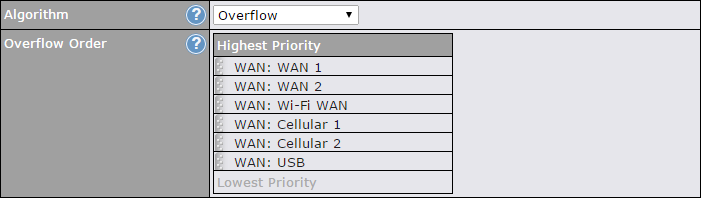
Drag and drop to specify the order of WAN connections to be used for routing traffic. Only the highest priority healthy connection that is not in full load will be used.
15.1.6. Algorithm: Least Used
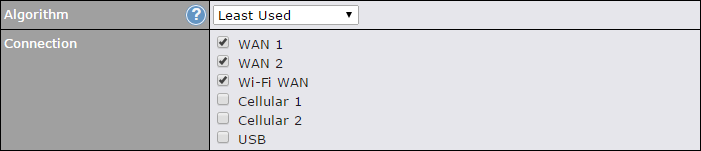
The traffic matching this rule will be routed through the healthy WAN connection that is selected in Connection and has the most available download bandwidth. The available download bandwidth of a WAN connection is calculated from the total download bandwidth specified on the WAN settings page and the current download usage. The available bandwidth and WAN selection are determined every time an IP session is made.
15.1.7. Algorithm: Lowest Latency
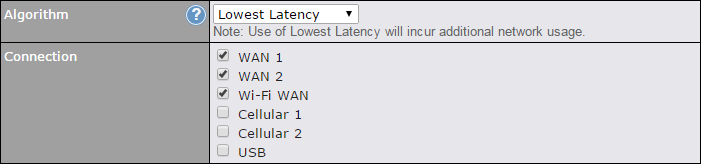
The traffic matching this rule will be routed through the healthy WAN connection that is selected in Connection and has the lowest latency. Latency checking packets are issued periodically to a nearby router of each WAN connection to determine its latency value. The latency of a WAN is the packet round trip time of the WAN connection. Additional network usage may be incurred as a result.
Tip |
The roundtrip time of a 6M down/640k uplink can be higher than that of a 2M down/2M up link because the overall round trip time is lengthened by its slower upload bandwidth, despite its higher downlink speed. Therefore, this algorithm is good for two scenarios:
|
15.1.8. Expert Mode
Expert Mode is available on some Peplink routers for use by advanced users. To enable the feature, click on the help icon and click turn on Expert Mode.
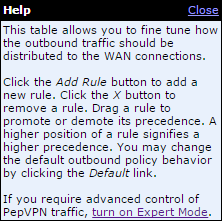
In Expert Mode, a new special rule, SpeedFusionTM Routes, is displayed in the Custom Rules table. This rule represents all SpeedFusionTM routes learned from remote VPN peers. By default, this bar is on the top of all custom rules. This position means that traffic for remote VPN subnets will be routed to the corresponding VPN peer. You can create custom Priority or Enforced rules and move them
above the bar to override the SpeedFusionTM routes.
Upon disabling Expert Mode, all rules above the bar will be removed.