
4. Organization Reports
Organization Reports controls cellular and Starlink data costs across every group. SIMs or Starlinks are grouped into pools that match carrier or Starlink plans. Each pool can send usage alerts by e-mail, Pushover or webhook, and can optionally throttle or stop user traffic once the quota is exceeded. Both screens, SIM Card Reports and Starlink Data Pools, also list every SIM and every Starlink in the organization, with CSV export. The same two screens exist at group level, where they cover one group only. The organization level versions described here cover every group in the organization.
Usage, Internet Availability and Device Availability per device are reported at group level, under Group > Reports > Device Reports. See 11.2 Device Reports (Group Level). Scheduled report e-mails are set under Group > Settings > Report E-mailing, which offers five report types (see 13.8 Report E-mailing (Group Level)). Organization-level Report E-mailing offers Usage Reports only (see 9.5 Report E-mailing (Organization Level)).
4.1. SIM Card Reports (Organization Level)
SIM Card Reports tracks cellular data usage against carrier and custom SIM pools across the whole organization, and lists the SIM cards installed in its devices. It shows how close each SIM pool is to its quota and the details of each SIM. The group level SIM Card Reports screen is described in the Reports chapter (see 11.5 SIM Card Reports (Group Level)). Its pool dialog resets on the group's time zone, not on GMT+0. For Peplink eSIM data, automatic top ups are set under Peplink eSIM Pooled Plan in Settings (Organization Level) (9.8.3 Peplink eSIM Pooled Plan). See also 6 eSIM and SIM Management.
Where to find it
Organization > Reports > SIM Card Reports
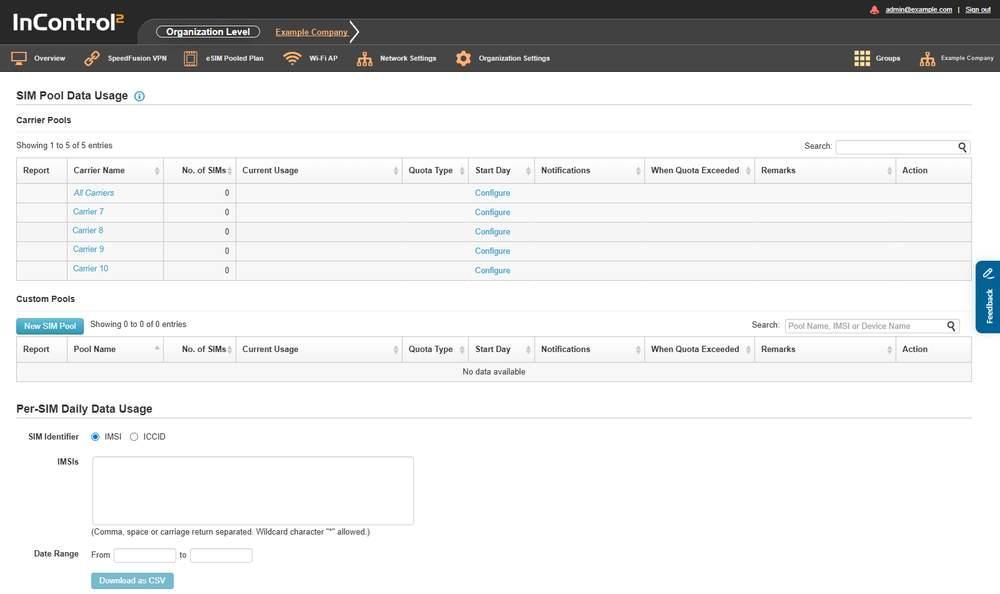
The SIM Card Reports screen. Carrier Pools are generated by the system. Custom Pools are user defined.
4.1.1. What This Screen Shows
Section | What it shows |
SIM Pool Data Usage | The page heading covering the two pool tables |
Carrier Pools | One row per carrier detected in the organization, plus an All Carriers row |
Custom Pools | User-defined pools |
Per-SIM Daily Data Usage | A CSV export tool for daily usage of selected SIMs |
Devices and SIM Cards | The SIM inventory per device |
4.1.2. What a SIM Pool Is
The SIM Pool Data Usage heading has an information icon. Its tooltip states that:
- A SIM pool profile monitors the total data usage of a collection of SIM cards in billing cycles.
- SIM cards are specified by their IMSI identifier.
- The same IMSI may be specified in more than one SIM pool.
- Carrier Pools are generated by the system, one for every carrier and one for all carriers, and their IMSIs are maintained automatically.
- Custom Pools are defined and maintained by the user.
Because an IMSI can belong to more than one pool, the same traffic can be counted against several pools. Pool totals are therefore not additive.
4.1.3. Carrier Pools and Custom Pools
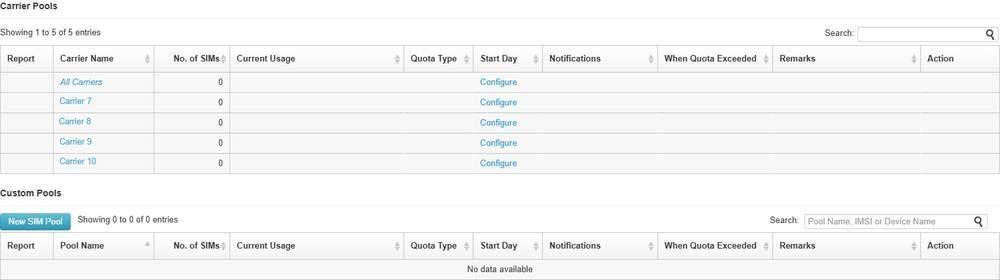
The Carrier Pools table. Rows with no quota set have Configure as their only action.
Both tables use the same columns, except that the second column names the carrier in one table and the pool in the other.
Column | What it shows |
Report | Link to the pool's usage report |
Carrier Name / Pool Name | The detected carrier, or the name given to the pool |
No. of SIMs | Number of SIMs counted in the pool |
Current Usage | Data used in the current quota period |
Quota Type | The quota period set for the pool |
Start Day | The day of the month the quota period starts |
Notifications | Notification channels enabled for the pool |
When Quota Exceeded | The action taken once the quota is exceeded |
Remarks | Free text for the pool |
Action | Per row actions. Carrier pool rows offer Configure |
Notes:
- Carrier pools are listed even when no quota is set. Current Usage, Quota Type, Start Day, Notifications and When Quota Exceeded are then blank and the only action is Configure.
- The Carrier Pools table is paged and states the range shown, in the form Showing 1 to 10 of N entries.
- An empty Custom Pools table shows No data available.
- Carrier Pools cover every carrier detected across the organization. The table is therefore longer than in any one group, and a No. of SIMs of zero on a row is normal.
- Carrier rows are listed even when the organization has no cellular device.
4.1.4. Per-SIM Daily Data Usage

The export tool. Select an identifier type, list the SIMs, set a date range, then download.
This section produces a CSV file rather than an on-screen table. It can be used to reconcile a carrier invoice, or to find which SIM in a pool that exceeded its quota used the data. A wildcard such as 310260* covers every SIM whose IMSI starts with that prefix.
Field | Notes |
SIM Identifier | IMSI or ICCID. The default is IMSI |
IMSIs | The identifiers to report on. The screen states they may be comma, space or carriage return separated, and that the wildcard character * is allowed |
Date Range | A From and a to field |
Download as CSV for this section is disabled until identifiers are entered.
4.1.5. Devices and SIM Cards

The SIM inventory table. Each cellular device in the organization adds its SIMs here under the ten columns shown. The device count is beside the Search field.
This table, and its Download as CSV, give the ICCID, IMSI, phone number (MTN), APN and band of each SIM.
Rows are grouped under a heading naming the group and the device, with one row per SIM slot beneath it. Both names in the heading are links. Hover over the device name to see its status in words, for example Online or Offline.
Column | What it shows |
WAN | The cellular WAN the slot belongs to, for example Cellular 1 |
SIM Slot | The physical slot, for example A or B. eSIM rows are named instead, and an active slot is marked (Active) |
Carrier | The carrier the SIM is registered to, with its country |
IMSI | The IMSI of the SIM |
ICCID | The ICCID of the SIM |
MTN | The mobile telephone number recorded for the SIM |
APN | The APN in use |
Primary Band | The primary band reported |
Secondary Band | The secondary band reported |
Remarks | Free text for the SIM |
Above the table, the screen states how many cellular devices are covered, in the form N cellular device(s). An organization with none shows 0 cellular device(s) with No data available in the table. The table is paged, with Previous and Next below it.
Slot names include the physical slots, Peplink eSIM and BYO eSIM A, so a device can list more slots than it has physical trays.
4.1.6. Controls on This Screen
Control | What it does |
Search: | Filters the Carrier Pools table |
New SIM Pool | Opens the pool dialog described below |
Pool Name, IMSI or Device Name | Filters the Custom Pools table by pool name, IMSI or device name |
IMSI / ICCID | Selects the identifier for the Per-SIM Daily Data Usage export |
Configure | Opens the settings for a carrier pool row |
Download as CSV | Exports the section above it. Per-SIM Daily Data Usage and Devices and SIM Cards each have their own |
4.1.7. Creating a Custom SIM Pool
To create a custom pool, name the pool, list the SIMs by IMSI or ICCID, set the quota and Start Day, tick the alert channels, and select the action taken when the quota is exceeded.
New SIM Pool opens a dialog.
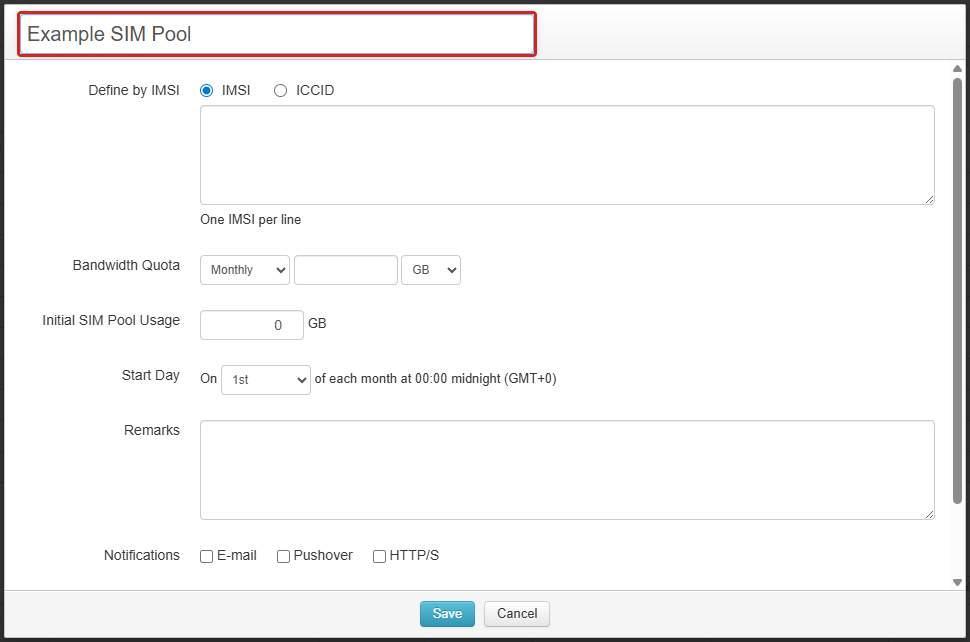
The New SIM Pool dialog. The box at the top, outlined in red and holding Example SIM Pool, is the Pool Name. Define by IMSI, Bandwidth Quota, Initial SIM Pool Usage, Start Day, Remarks and Notifications follow.
Field | Notes |
Pool Name | The first box, in the dialog's header. This name is shown in the Custom Pools table |
Define by | IMSI or ICCID |
Identifier list | The SIMs in the pool. The dialog states one IMSI per line |
Bandwidth Quota | Period, amount and unit |
Initial SIM Pool Usage | A starting figure in GB, for a pool that already has usage against it |
Start Day | The day of the month the quota period restarts |
Remarks | Free text for the pool |
Notifications | E-mail, Pushover, HTTP/S |
When Bandwidth Quota Exceeded | Stop Routing User Traffic, Bandwidth Throttling |
The dialog's dropdowns offer:
Dropdown | Options |
Bandwidth Quota period | Daily, Weekly, Monthly, Yearly |
Bandwidth Quota unit | MB, GB, TB |
Start Day | 1st, 2nd, 3rd, 4th, 5th, 6th, 7th, 8th, 9th, 10th, 11th, 12th, 13th, 14th, 15th, 16th, 17th, 18th, 19th, 20th, 21st, 22nd, 23rd, 24th, 25th, 26th, 27th, 28th, Last day |
Caution: Stop Routing User Traffic stops user traffic once the quota is exceeded, and Device Management then flags the WAN with One or more WANs hit 100% usage and restricted to routing management traffic only. Select Bandwidth Throttling unless stopping user traffic at the cap is intended.
Notes on the Start Day list:
- It ends on the 28th, so every selectable day exists in every month.
- Last day starts at 00:00 on the last day of each month. For a period that follows the calendar month, select 1st.
HTTP/S sends usage alerts to an external system. Subject for Usage Alerts variables such as ${pool_name} and ${usage_percentage} make the e-mail subject easy to sort.
Subject for Usage Alerts sets the subject line of the usage alert. The field accepts variables, and the dialog lists the available ones:
- ${date_time}
- ${group_name}
- ${link}
- ${n_sims}
- ${organization_name}
- ${quota}
- ${quota_mb}
- ${start_day}
- ${start_weekday}
- ${start_month}
- ${pool_name}
- ${usage}
- ${usage_mb}
- ${usage_percentage}
The list is the same on the organization level and group level dialogs, including ${group_name}.
HTTP/S posts the alert to a specified URL. A test action beside the field reports Sent or Failed. The dialog states:
- An HTTP/S POST call is made to the specified URL for the events selected above.
- The POST data is an array of events in JSON format, each event carrying fields including ts, device_name, device_id, client_name, client_mac, event_type, detail, longitude, latitude, gps_timestamp and sn.
- On any error, for example an HTTP response code of 300 or above or a network timeout, the call is retried "at most five times every one minute".
Save and Cancel close the dialog.
4.1.8. When the Quota Period Resets
The reset time differs between the two levels.
Level | What the dialog states |
Organization | The quota restarts of each month at 00:00 midnight (GMT+0) |
Group | The quota restarts each month at 00:00 midnight in that group's time zone |
As a result:
- An organization-level pool always resets on GMT+0, regardless of the time zone of the groups it covers.
- A group-level pool resets on its own group's time zone.
- Two pools set to the same Start Day therefore reset at different times unless the group's time zone is GMT+0. Usage in the hours between the two resets counts towards the closing period of one pool and the opening period of the other, so the two totals can differ around the reset time.
4.2. Starlink Data Pools (Organization Level)
Starlink Data Pools applies pooled data quotas to the Starlinks attached to devices anywhere in the organization, and lists those Starlinks. The Starlink list also shows which Starlinks have restarted or run older software.
Peplink's knowledgebase article Starlink Data Pools states the following:
- Devices report Starlink usage to InControl 2 every 15 minutes, and reports and notifications can lag by an hour or more, so usage can exceed the quota before the action takes effect.
- The figures are an estimate. Because of protocol overhead and unit conversion, they can differ from the usage of Starlink bills.
- Pools require firmware 8.5.2 or later. Bandwidth Throttling requires 8.5.3 or later.
- Enter usage from before the devices were connected in Initial Starlink Data Pool Usage. The pool counts from when it is created.
The group level Starlink Data Pools screen, including a pool row with its actions, is described in the Reports chapter. See 11.6 Starlink Data Pools (Group Level).
Where to find it
Organization > Reports > Starlink Data Pools
The screen opens with the New Starlink Data Pool form displayed over it. Cancel closes the form and shows the screen. Nothing is created until Save is clicked.
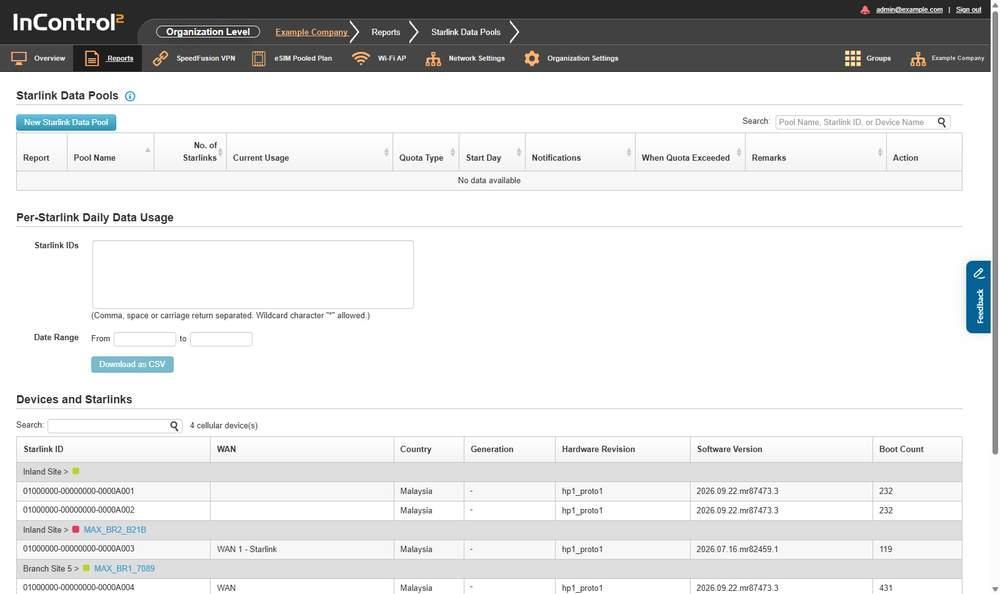
The Starlink Data Pools screen with no pools defined. The Devices and Starlinks table at the bottom lists the Starlinks available to pool.
4.2.1. What a Starlink Data Pool Is
The Starlink Data Pools heading has an information icon. Its tooltip states that:
- A Starlink data pool profile tracks the overall data usage of a group of Starlinks during billing cycles.
- Each Starlink is identified by its Starlink ID.
- A Starlink ID can be associated with one or more data pools.
As with SIM pools, a Starlink in more than one pool has its traffic counted against each of them, so pool totals are not additive.
4.2.2. What This Screen Shows
Section | What it shows |
Starlink Data Pools | The defined pools |
Per-Starlink Daily Data Usage | A CSV export tool for daily usage of selected Starlinks |
Devices and Starlinks | The Starlink inventory per device |
4.2.3. The Pool Table
Column | What it shows |
Report | Link to the pool's usage report |
Pool Name | The name given to the pool |
No. of Starlinks | Number of Starlinks counted in the pool |
Current Usage | Data used in the current quota period |
Quota Type | The quota period set for the pool |
Start Day | The day of the month the quota period starts |
Notifications | Notification channels enabled for the pool |
When Quota Exceeded | The action taken once the quota is exceeded |
Remarks | Free text for the pool |
Action | Per row actions |
With no pools defined, the table shows No data available. For the same table with a pool defined, see The pool table in the Reports chapter (11.6.3 The Pool Table). With a pool defined:
- Current Usage is shown as a bar with the percentage used, and the amount used against the quota beside it.
- Report is an icon linking to the pool's usage report.
- Action has two icons: Clone (shown in its tooltip) and a waste bin.
4.2.4. Per-Starlink Daily Data Usage

The export tool. List the Starlink IDs, set a date range, then download.
Field | Notes |
Starlink IDs | The Starlinks to report on. The screen states they may be comma, space or carriage return separated, and that the wildcard character * is allowed |
Date Range | A From and a to field |
Download as CSV for this section is disabled until identifiers are entered.
4.2.5. Devices and Starlinks
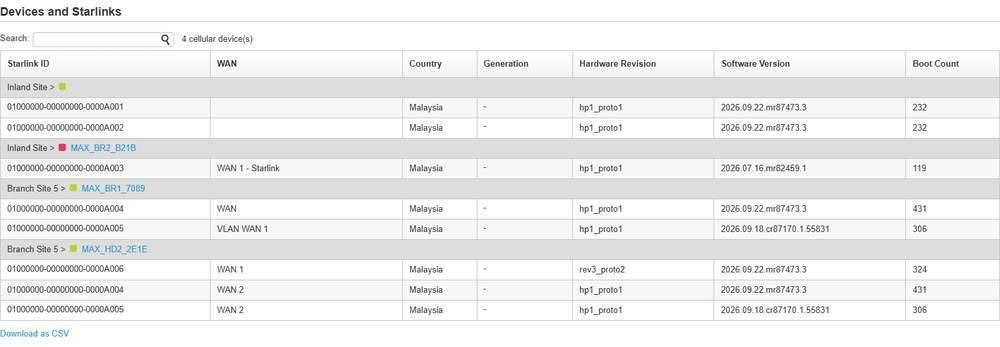
The Starlink inventory, grouped under a group and device heading with one row per Starlink.
Rows are grouped under a heading naming the group and the device, with one row per Starlink beneath it.
Column | What it shows |
Starlink ID | The Starlink identifier |
WAN | The device WAN the Starlink is listed against, for example WAN 1, WAN 2 or VLAN WAN 1. Can be blank |
Country | The country reported by the Starlink |
Generation | The generation value reported by the Starlink. A dash means no value was reported |
Hardware Revision | The hardware revision string reported by the Starlink |
Software Version | The software version running on the Starlink. Compare it over time to identify Starlinks running older software. A Starlink with firmware waiting to install is also flagged on Device Management with One or more Starlink terminal connected to this device has firmware pending to install. |
Boot Count | The number of boots reported by the Starlink. Compare it over time to identify Starlinks that have restarted. A dash means no value was reported |
Because this screen covers the whole organization, the same Starlink ID can appear under more than one device, including devices in different groups, when the Starlink has connected to each. The group heading of each row block identifies the device. Each row shows what that device last reported.
4.2.6. Controls on This Screen
Control | What it does |
New Starlink Data Pool | Opens the pool form described below |
Pool Name, Starlink ID, or Device Name | Filters the pool table by pool name, Starlink ID or device name |
Search: | Filters the Devices and Starlinks table |
Download as CSV | Exports the section above it. Per-Starlink Daily Data Usage and Devices and Starlinks each have their own |
4.2.7. Creating a Starlink Data Pool
New Starlink Data Pool opens a form with the same layout as the SIM pool dialog. At organization level, the form is already displayed when the screen opens.
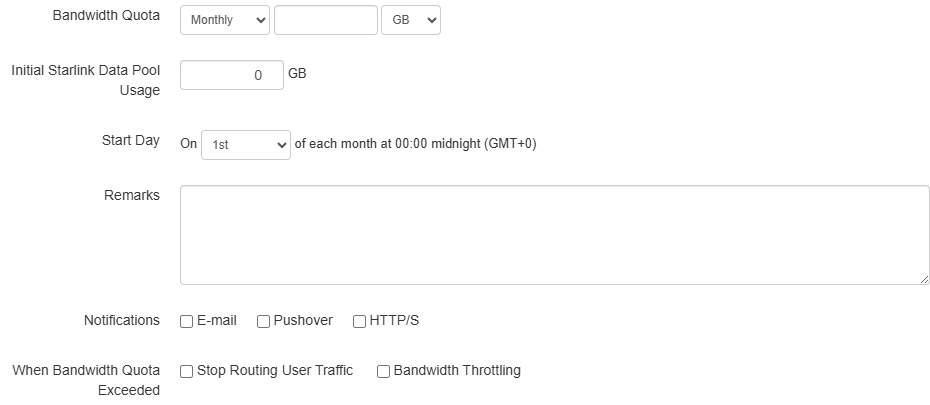
The quota part of the form at organization level. Start Day states midnight (GMT+0).
Field | Notes |
Pool Name | The name shown in the pool table |
Starlink IDs | The Starlinks in the pool. The form states one ID per line |
Bandwidth Quota | Period, amount and unit |
Initial Starlink Data Pool Usage | A starting figure, for a pool that already has usage against it |
Start Day | The day of the month the quota period restarts |
Remarks | Free text for the pool |
Notifications | E-mail, Pushover, HTTP/S |
When Bandwidth Quota Exceeded | Stop Routing User Traffic, Bandwidth Throttling |
The form's dropdowns offer:
Dropdown | Options |
Bandwidth Quota period | Daily, Weekly, Monthly, Yearly |
Bandwidth Quota unit | MB, GB, TB |
Start Day | 1st, 2nd, 3rd, 4th, 5th, 6th, 7th, 8th, 9th, 10th, 11th, 12th, 13th, 14th, 15th, 16th, 17th, 18th, 19th, 20th, 21st, 22nd, 23rd, 24th, 25th, 26th, 27th, 28th, Last day |
Caution: Stop Routing User Traffic stops user traffic once the quota is exceeded, and Device Management then flags the WAN with One or more WANs hit 100% usage and restricted to routing management traffic only. Select Bandwidth Throttling unless stopping user traffic at the cap is intended.
The form states that the quota restarts of each month at 00:00 midnight (GMT+0), as on the SIM pool dialog. The group-level form states the reset in that group's time zone. An organization level Starlink pool therefore always resets on GMT+0, and a group level Starlink pool on its own group's time zone. For the effect on reported figures, see When the quota period resets under SIM Card Reports (4.1.8 When the Quota Period Resets).
The notification settings work as on the SIM pool dialog (see 4.1.7 Creating a Custom SIM Pool), with these points:
- Subject for Usage Alerts accepts ${date_time}, ${group_name}, ${link}, ${n_starlinks}, ${organization_name}, ${quota}, ${quota_mb}, ${start_day}, ${start_weekday}, ${start_month}, ${pool_name}, ${usage}, ${usage_mb} and ${usage_percentage}. The count variable is ${n_starlinks} here, not ${n_sims}.
- HTTP/S posts an array of events in JSON format to the specified URL, and has a test action that reports Sent or Failed. On any error, for example an HTTP response code of 300 or above or a network timeout, the call is retried "at most five times every one minute".
Save is unavailable until the form holds enough information to define a pool. Cancel closes the form.