
3. Organization Dashboard
The Organization Dashboard is the entry point to an organization. Its single screen, Overview, shows the organization totals, a grid of every group with its online and offline device counts, and a map of every device. All figures on this screen are organization-wide and cover all groups, not only the group last opened.
3.1. Overview
Use this screen to see how many devices are offline and which groups they belong to.
The device and client counts on this screen cover the whole organization. The equivalent counts on a group Dashboard cover that group only.
Where to find it
Organization > Overview
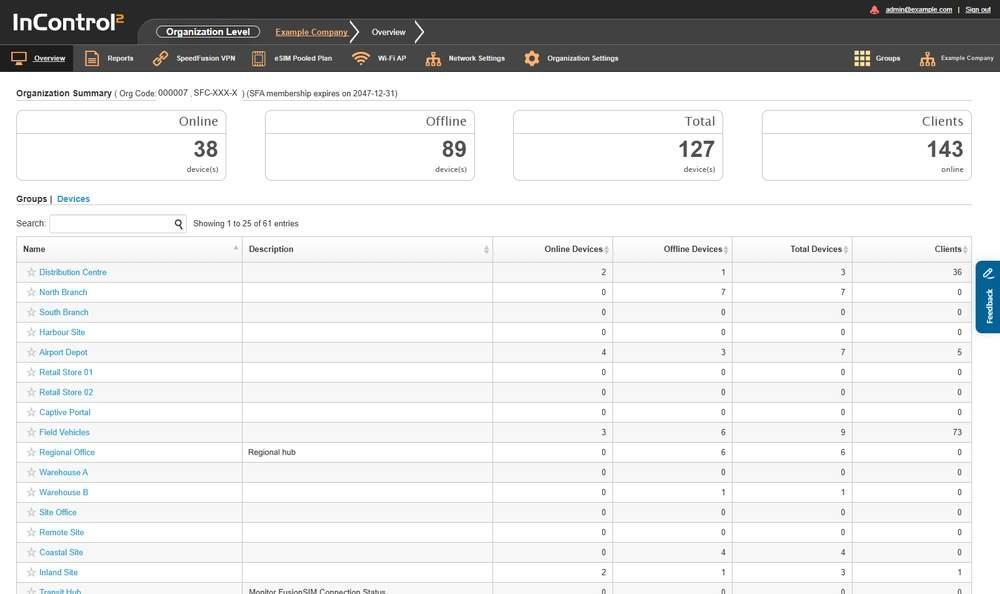
The Overview screen. The Organization Summary panel is above the Groups grid, and the map fills the lower part of the page.
3.1.1. What This Screen Shows
Section | What it shows |
Organization Summary | Organization identifiers and the device and client totals |
Groups | Devices | A grid of the organization's groups, with a link to the device list |
Map | The organization's devices plotted geographically |
3.1.2. Organization Summary
The panel heading shows the organization's identifiers, followed by the totals.

The four totals in the Organization Summary panel. Online, Offline and Total count devices. Clients counts the clients online.
Item | What it shows |
Org Code | The organization's code, shown in the panel heading |
SFA membership | The expiry date of the organization's SFA membership, shown in the panel heading. Not shown in every organization |
Online | Number of devices currently online |
Offline | Number of devices currently offline |
Total | Number of devices in the organization |
Clients | Number of clients currently online across the organization |
To see which devices are offline, click Devices in the Groups | Devices heading. This opens Organization > Organization Settings > Device Management, which lists every device in the organization with its Status and condition flags. See Settings (Organization Level), 9.2 Device Management (Organization Level).
3.1.3. The Groups Grid
Each row is one group in the organization. The Name cell links to the group.
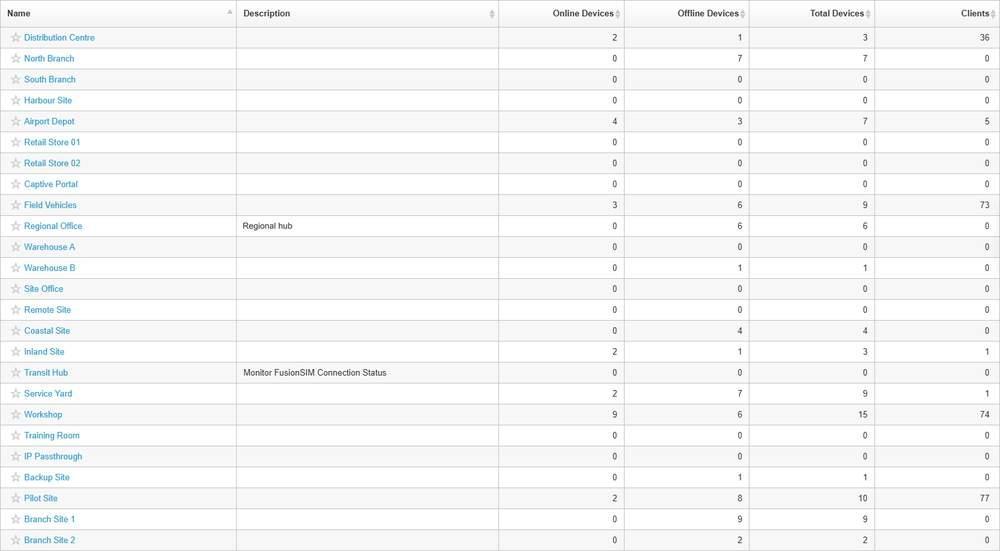
The Groups grid. Each group name is a link with a star beside it. The Description column shows free text where a description is set.
Column | What it shows |
Name | The group name. Links to the group |
Description | The free text description set for the group |
Online Devices | Devices in the group currently online |
Offline Devices | Devices in the group currently offline |
Total Devices | Devices in the group |
Clients | Clients currently online in the group |
The grid is paged. It shows the range displayed, for example Showing 1 to 25 of 61 entries, with Previous and Next.
Download as CSV and Manage... are below the grid. Manage... opens Organization > Organization Settings > Group Management, which lists the same groups with their device counts and provides Create to add a group. See Settings (Organization Level), 9.4 Group Management.
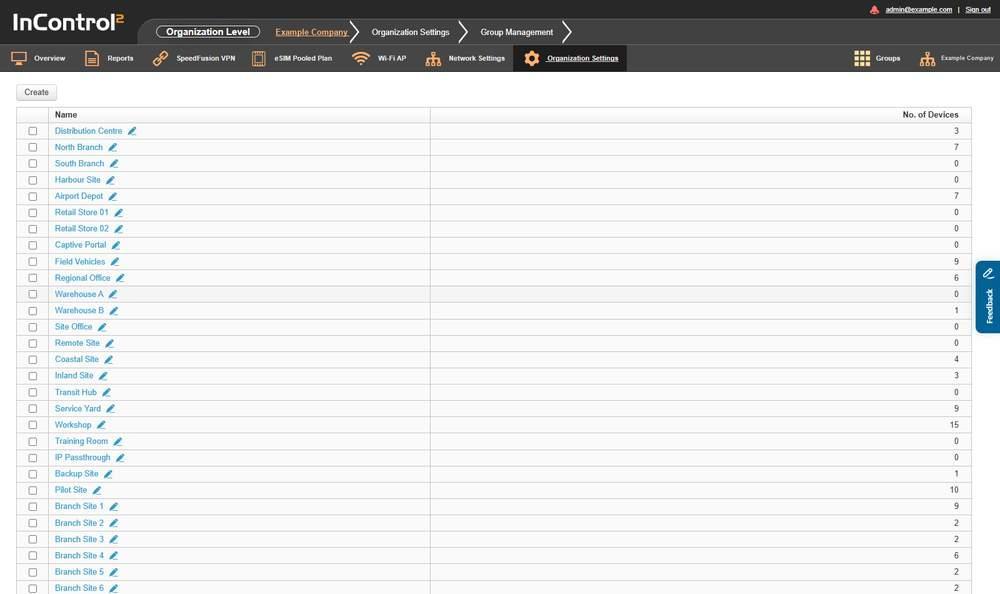
Group Management, opened from Manage.... The breadcrumb changes to Organization Settings > Group Management. Each group name has a pencil icon for renaming, and Create is above the list.
3.1.4. The Map
The map is below the grid and has its own controls.
Map, at the top left of the map, selects the base layer. It shows the layer in use and opens a short list. This chooser is not shown in every organization.
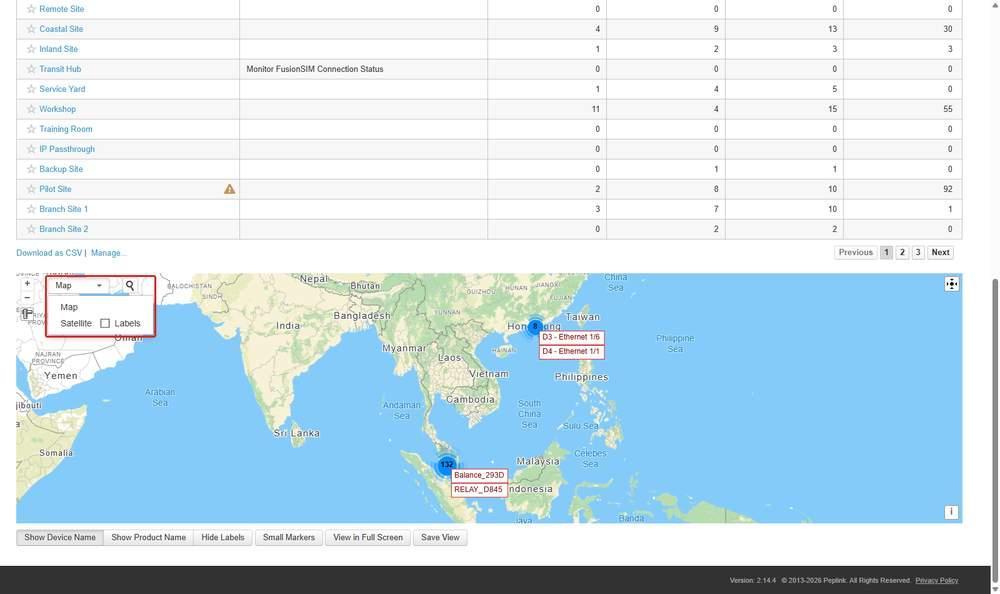
Map opens a list with two entries, Map and Satellite, and a Labels checkbox on the Satellite row. The chooser and its list are outlined in red. The label buttons and Save View are below the map.
Entry | Effect |
Map | The drawn map. This is the default layer |
Satellite | Satellite imagery |
Labels | A checkbox on the Satellite row. Draws labels on the map |
Satellite imagery comes from the source set under Map in Organization > Organization Settings (9.8.8 Map), where Satellite offers Google Maps or None.
A marker can show a past location. If a marker's tooltip reads This marker indicates the device's location in the past, the marker shows where the device was earlier, which is not necessarily its current location.
Online and offline devices can use different marker images, set under Custom Map Markers in Organization > Organization Settings, Map. This makes offline devices easier to identify on the map. See 9.8.8 Map.
Marker labels (Show Device Name, Show Product Name, Hide Labels), zoom, attributions and the distance measuring tool work as on the group Dashboard map, which also has the Map base layer chooser. See The map in Group Dashboard (10.1.6 The Map). This map plots every device in the organization. The group Dashboard map plots the devices in one group only.
3.1.5. Controls on This Screen
Control | What it does |
Search: | Filters the grid |
Devices | Opens the organization's device list. See Settings (Organization Level), 9.2 Device Management (Organization Level), for its columns, condition flags and bulk actions |
Download as CSV | Exports the grid with each group's online, offline and total device counts |
Manage... | Opens Organization > Organization Settings > Group Management. See 9.4 Group Management |
Map | Selects the map's base layer. Offers Map and Satellite, with a Labels checkbox |
Zoom in | Zooms the map in. Drawn as + |
Zoom out | Zooms the map out. Drawn as – |
Attributions | Shows the map's data attributions. Drawn as i |
Small Markers | Draws the map markers at a smaller size |
View in Full Screen | Shows the map full screen |
Save View | Saves the current map view |