
17. Common Tasks
This chapter summarizes the tasks most often performed in InControl 2 and maps each one to the chapter that covers it in full. It also gives a troubleshooting procedure for a site that is down, a checklist for changes that reach many devices, and a glossary of terms that affect how reports are read.
17.1. Task Index
Each table lists a task, the screen that performs it, key points, and the section with full detail.

Key status figures: the number of online, offline and total devices in the organization, and the number of online clients.
17.1.1. Watching the Fleet
Task | Go to | Notes | See |
See how many devices are online and offline across the organization | Organization > Overview | The Organization Summary gives Online, Offline and Total. The Groups grid breaks them down per group | |
Find a device, SIM or IP address in any organization | The search box on My Organizations and Groups | Searches by organization or group name, S/N, device name, model, IMSI, IMEI, ICCID, EID, IP address and subnet | |
List every device with a problem | Group > Dashboard, or Organization > Organization Settings > Device Management | Filter by the status icons, for example Priority-1 down WANs or One or more WANs hit 100% usage and restricted to routing management traffic only. | 10.1.3 The Devices Grid, 9.2 Device Management (Organization Level) |
Receive alerts by e-mail, Pushover or webhook | Group > Settings > Notifications | 31 event types, including Device Online / Offline with up to three escalation levels and WAN Up / Down for priority 1 WANs only. Enable both the profile and the channel. Profiles are set per group | |
Receive an alert before a SIM or Starlink plan is used up | Organization > Reports > SIM Card Reports or Starlink Data Pools | Set a pool quota, the alert channels, and Bandwidth Throttling or Stop Routing User Traffic at the cap | 4.1 SIM Card Reports (Organization Level), 4.2 Starlink Data Pools (Organization Level) |
List subscriptions about to expire | Organization > Organization Settings > Subscriptions and Licenses | Filter About to expire, then click Download as CSV. Sort the CSV by Subscription Expiration Date to plan renewals | |
See the data a SIM used this month | Device > Reports > Bandwidth and Usage Reports | Select Monthly and the SIM slot in Connection:. Monthly covers the last 24 months |
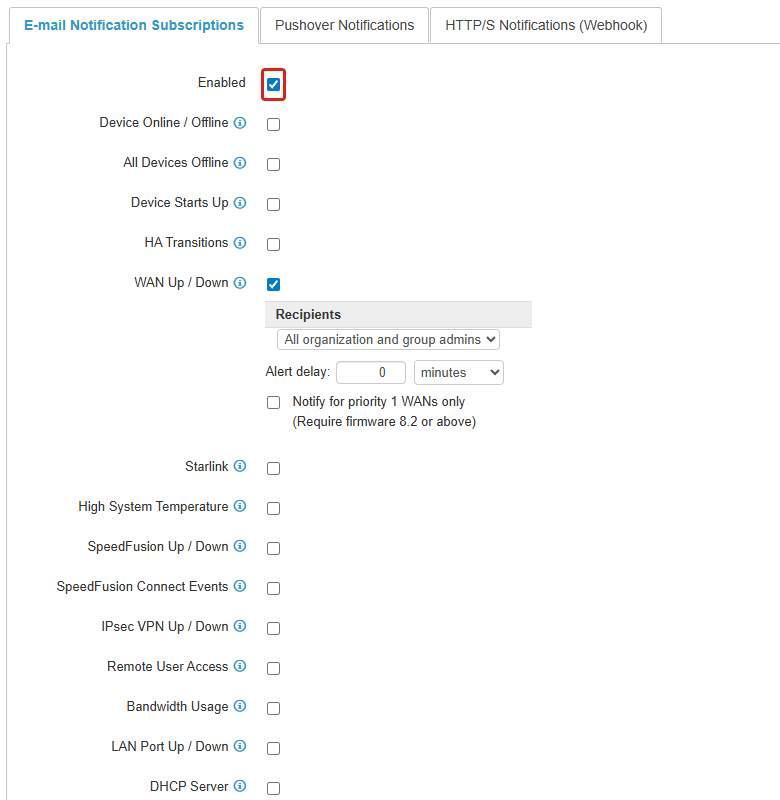
A notification profile with the E-mail channel enabled. Each event has its own checkbox and recipients. WAN Up / Down also has an alert delay and a priority 1 WANs only option.
17.1.2. Setting Up
Task | Go to | Notes | See |
Add the first device | Group > Settings > Add Devices | Enter one serial number per line, or upload a CSV file. If a device stays offline after it is added, check the prerequisites: warranty or subscription, supported firmware, and outbound TCP 5246 and UDP 5246 | |
Add a device held by another organization, or release a sold device | Group > Settings > Add Devices, or Device Management, Actions, Remove... | Only the holding organization can release a device. A device held by another organization cannot be added until that organization releases it | 2.8.1 If a Serial Number Cannot Be Added, 2.8.2 If the Device Belongs to Another Organization, 2.8.3 Releasing a Device You No Longer Own |
Change an SSID or its Wi-Fi password | Group > Wi-Fi AP > Group-wide SSID Settings | Wi-Fi Management must be ticked. Click the SSID name to edit it. The password is the Shared Key. The Security Policy of a new SSID defaults to Open - No Encryption | 7.2.4 How to Change an SSID or Its Wi-Fi Password, 7.2.3 How to Roll Out an SSID to the Group |
Block a website category for one site | Group > Network Settings > Firewall Rules, Content Blocking tab of a rule set | Tag the site, then set the rule set's Device Selection to the tag. A rule set is the device's entire firewall rule list. Lite tier devices enforce only 6 of the 17 categories | 8.5.4 Creating a Rule Set, 8.5.8 The Content Blocking Tab, 13.1.5 The Tag Menu |
Install an eSIM on one device | Device > Settings > Device Tools, eSIM Installation in Command | The device must be online, have EssentialCare or PrimeCare, and keep another WAN connected to the Internet | |
Set up a SpeedFusion profile | Group > SpeedFusion VPN > Configuration, then Organization > SpeedFusion VPN > Configuration, Add Profile | Tick Enabled on each group first. The wizard lists only devices from groups with SpeedFusion VPN enabled |
17.1.3. Fixing a Site
Task | Go to | Notes | See |
Site has internet access but the device shows offline in InControl 2 | The device's own Web Admin, then Organization > Organization Settings > Subscriptions and Licenses | Check the warranty or subscription, the upstream firewall (TCP 5246, UDP 5246, DNS, NTP), the clock and Outbound Policy | 17.2.1 If the Site Works but InControl 2 Shows the Device Offline |
Find when a device went offline | Device > Reports > Event Log, Offline History and Online History | Event Log search covers a rolling 31 days. Log Archive Download covers 12 months at device level and 24 months at group level | |
Find when and how often a WAN or SpeedFusion link dropped | Device > Reports > Connection Up/Down History | Select a timestamp to open the Event Log on a ten minute window around it. Monthly availability is shown per connection | |
Check WAN latency over a day | Device > Reports > WAN Quality Reports | Select the WAN first. Download Throughput Data gives per minute bandwidth for one day | |
Check cellular signal history | Device > Reports > WAN Quality Reports, select the cellular WAN | Hover over a point for RSRP, SINR and RSRQ | |
Ping, traceroute or reboot one device | Device > Settings > Device Tools | Greyed out in the menu while the device is offline | |
Open the device's own web admin or command line | Device > Settings > Remote Web Admin or Web CLI | Available without on site access, including for devices behind carrier NAT. Changes made there apply directly to the device | |
Reach a camera, PLC or other equipment behind the router | Device > Settings > InTouch | Each entry records equipment on the site's LAN so it can be reached by name rather than by raw address | |
Check a SpeedFusion link now and over time | Group > SpeedFusion VPN > Live Status - Tabular View | For history, open Connection Up/Down History (SpeedFusion VPN tab) and SpeedFusion Score in Device Reports | 5.5 Live Status - Tabular View (Group Level), 15.12 Connection Up/Down History |
Find the client using the most bandwidth | Device > Reports > Device Reports, Top Clients by Usage | Set the date range first |
17.1.4. Changing Many Devices
Task | Go to | Notes | See |
Add many devices at once | Organization > Organization Settings > Add Devices | Paste CSV lines "Serial Number","Device Name" and select the group and tags in the same step | |
Create a site group with the same settings as an existing one | Organization > Organization Settings > Create Group | Settings Cloning copies selected areas of settings from a template group | |
Apply SSIDs, firewall rules, outbound policy or WAN settings to many devices | Group > Wi-Fi AP, Group > Network Settings | Target devices by tag. Enable Auto Roll Back Device Configuration first. See Making a change safely below (17.4 Making a Change Safely) | 7.2 Group-wide SSID Settings, 8.1 How Group Management Works |
Reboot many devices | Group > Settings > Device System Management, Scheduled Reboot | Use Scheduled Reboot, or reboot each device from Device Tools | |
Roll out firmware | Organization > Organization Settings > Firmware Policy, then each group's Firmware Policy | Keep Upgrade only selected. Check Devices not following the policy: afterwards | 9.6 Firmware Policy (Organization Level), 13.9 Firmware Policy (Group Level) |
View configuration changes and who made them | Group > Settings > Operation Log, or Organization > Organization Settings > Operation Log | Each row gives the time, the user, the action, and the old and new values | 13.18 Operation Log (Group Level), 9.7 Operation Log (Organization Level) |
Grant read-only access to one group | Group > Settings > Group Settings, Administration | The Group Viewer role cannot edit settings or access other groups | |
E-mail a monthly report | Group > Settings > Report E-mailing | Monthly sends on the first of every month. Other e-mail addresses sends to recipients without an InControl 2 account |
17.2. When a Site Is Down
Follow these steps to find the cause and start time of a site outage. All steps are performed in InControl 2. The reports in steps 2 to 6 remain available while the device is offline.
- 1.Check whether the device is online. Open the device. The square beside its name on Device Details shows its state (see 14.1 Device Details). InControl 2 marks a device offline when it has received nothing from it for more than 3 minutes at the default reporting interval.
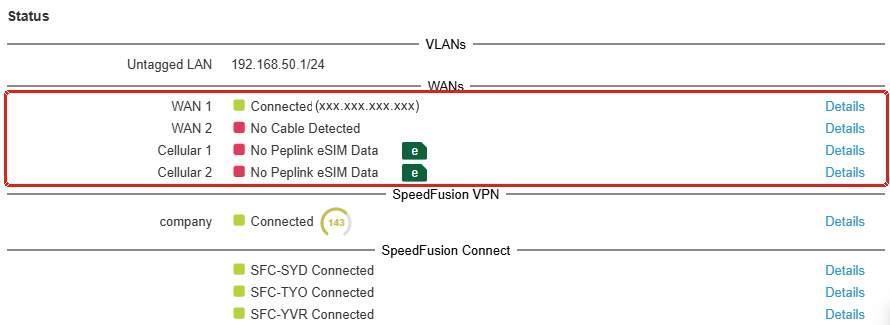
Steps 1 and 3. The WANs block on Device Details shows each connection and its state. In this example, WAN 1 is connected and the others are down.
- 2.If the device is offline, find when it went offline. Device > Reports > Event Log, table Offline History and Online History. Each row pairs the offline time with the online time and the length of the gap. See 15.9.3 Offline History and Online History.

Step 2. Each row gives the offline time, the online time and the length of the gap.
- 3.If the device is online, check its WANs. Device Details, Status, WANs (see 14.1.10 Status). The Priority-1 down WANs icon on the device's row shows the same information in the group grid.
- 4.Find when and how often the WAN dropped. Device > Reports > Connection Up/Down History (see 15.12 Connection Up/Down History). Select the Down timestamp to open the Event Log at that time.
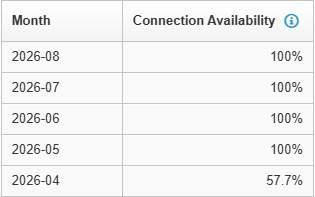
Step 4. Connection Up/Down History shows the availability of each connection per month.
- 5.Check for a WAN that is up but carries no user traffic. Look for the icon One or more WANs hit 100% usage and restricted to routing management traffic only. It means the WAN has used its allowance. See 13.1.2 Status Icons.
- 6.Check whether a link is slow rather than down. Device > Reports > WAN Quality Reports (see 15.6 WAN Quality Reports), with the WAN selected. The chart marks WAN Up and WAN Down against latency. For a cellular WAN, the same screen shows signal strength and quality over time. Hover over a point for RSRP, SINR and RSRQ.
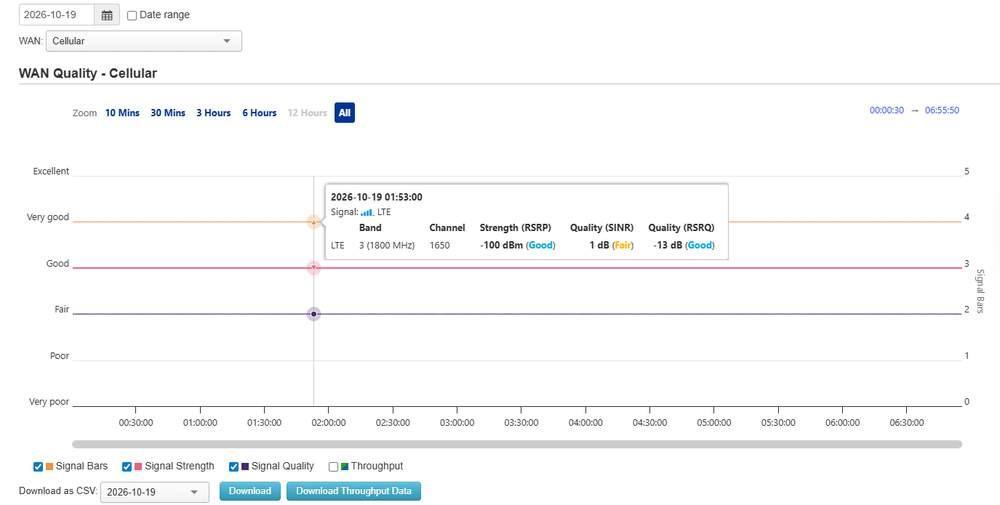
Step 6, cellular WAN. Hover over a point for RSRP, SINR and RSRQ, each with a level rating, plus the band and channel.
- 7.Check for a recent configuration change. Group > Settings > Operation Log (see 13.18 Operation Log (Group Level)) lists recent changes. On Device Details, Configuration to device stopped. Configuration rolled back. means a configuration change left the device unable to reach InControl 2, so the device went back to its previous configuration. See 14.1.3 When a Change Cuts a Device Off.
- 8.Test from the device. Device > Settings > Device Tools, Ping or Traceroute from each WAN in turn (see 16.4.2 How to Isolate a Fault from InControl 2). If one WAN reaches the target and another does not, the fault lies with that WAN rather than the device.
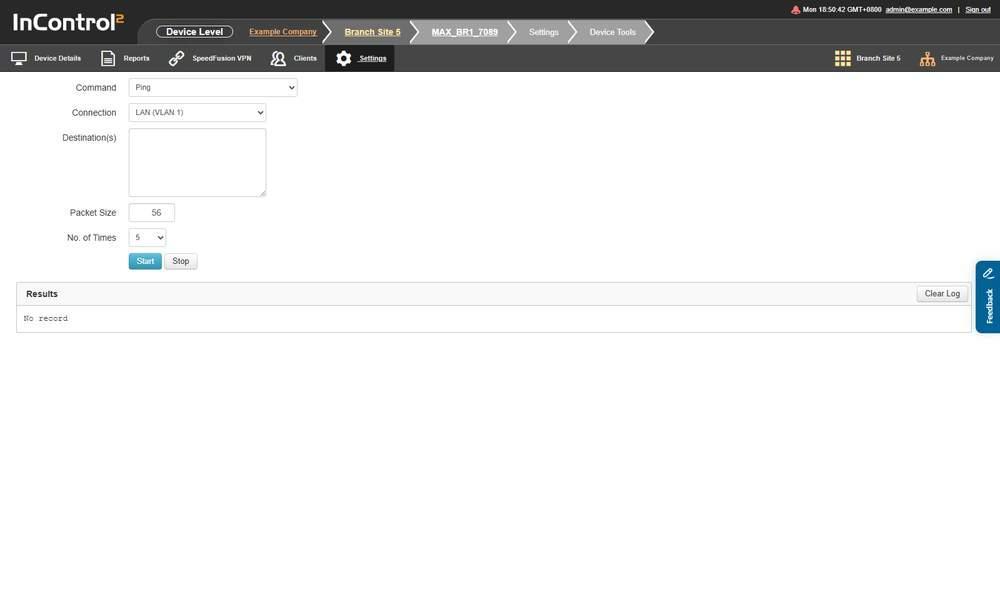
Step 8. Select the Connection to ping from, to test each WAN in turn.
- 9.Inspect the device. Remote Web Admin (16.5 Remote Web Admin) or Web CLI (16.6 Web CLI) opens the device's own interface for anything InControl 2 does not show. Saved configurations are listed on Device Details under Information, Show All, Configuration Backups. See 14.1.6 Configuration Backups.
Caution: On an offline device, Device Tools, Remote Web Admin and Web CLI are greyed out in the Settings menu. Use step 2 and the reports instead.
17.2.1. If the Site Works but InControl 2 Shows the Device Offline
If users at the site have internet access but the device shows offline in InControl 2, the device cannot reach InControl 2. Check the following items in the device's own Web Admin at the site, or with personnel on site.
- 1.InControl management on the device. In the device's Web Admin, check that InControl management is enabled.
- 2.Warranty or subscription. Check the device's expiry on Organization > Organization Settings > Subscriptions and Licenses (9.9 Subscriptions and Licenses). A device whose warranty or subscription has lapsed shows as offline even with a working connection.
- 3.Upstream firewall. Outbound TCP 5246, UDP 5246, DNS (UDP and TCP 53) and NTP (UDP 123) must be allowed from the device. See 1.3 Before You Start.
- 4.Name resolution. From the device's Web Admin, ping ac1.peplink.com and ac2.peplink.com. If the names do not resolve, correct the DNS servers the device uses. If they resolve but do not answer, check for a firewall or an upstream hop blocking the path. A ping reply does not confirm that UDP 5246 is open.
- 5.Clock. If the device's time reads 1 January, the device usually started without a working WAN and could not set its clock, so it cannot validate InControl 2's certificates. It recovers once a WAN is up and the time synchronizes.
- 6.Routing. The device's own InControl 2 traffic follows its routing like any other traffic:
- An Outbound Policy rule that sends all traffic into a VPN, or SpeedFusion with Send all traffic to enabled, can carry it to a peer that does not forward it.
- A static route for 0.0.0.0 in the LAN settings takes precedence over Outbound Policy.
In the device's Outbound Policy, enable Expert Mode, add a rule that sends *.peplink.com over a WAN with direct internet access, and move the rule to the top, above the SpeedFusion VPN entry. See 8.4 Outbound Policy.
17.3. Daily Health Check
Perform this check at the start of each working day. It covers three screens.
- 1.Organization > Overview (3.1 Overview): compare Offline with the previous day. Open any group whose offline count has increased.
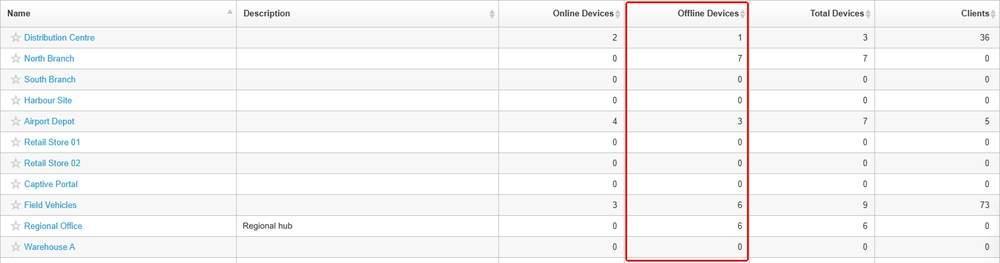
Step 1. The Offline Devices column of the Groups grid gives the offline count of each group. Open any group whose count has increased since the previous day.
- 2.Group > Dashboard (10.1.3 The Devices Grid): filter the device grid by the status icons. Act first on Priority-1 down WANs, One or more WANs hit 100% usage and restricted to routing management traffic only., and the configuration icons Configuration to device stopped. Configuration rolled back. and InControl 2 stopped applying configurations to the device.
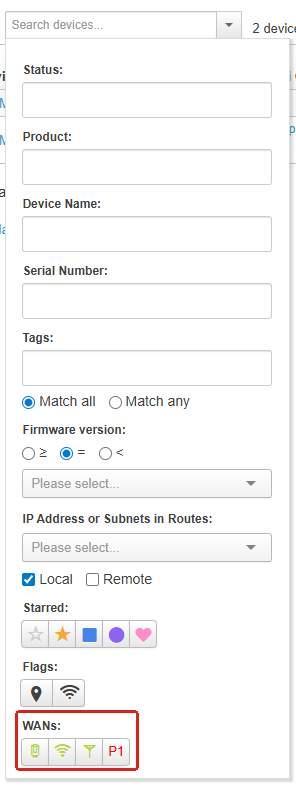
Step 2. The search options panel, opened from the arrow beside the search box above the device grid. The WANs icon set at the bottom is one of the status icon filters. Hover over an icon for its tooltip.
- 3.Organization > Reports > SIM Card Reports (4.1 SIM Card Reports (Organization Level)) and Starlink Data Pools (4.2 Starlink Data Pools (Organization Level)): check Current Usage against each pool's quota.

Step 3. Current Usage shows the percentage of the quota used, with the amount used against the quota beside it.
- 4.Organization > Organization Settings > Subscriptions and Licenses (9.9 Subscriptions and Licenses): filter About to expire once a week.
17.4. Making a Change Safely
Follow these steps before any change that reaches more than one device: SSIDs, firewall rules, outbound policy, WAN settings or firmware.
- 1.Enable Auto Roll Back. Group > Settings > InControl Options, Auto Roll Back Device Configuration (see 13.6.1 Configuration Control). If a device cannot reach InControl 2 within 10 minutes of receiving a configuration, it rolls the configuration back automatically. A rule that cuts the device off from InControl 2 is therefore reversed. The trigger is the device's contact with InControl 2 only. A change that leaves the device reachable but breaks another service at the site, such as client Wi-Fi, a VPN or a LAN service, is not rolled back. Check the site after every change.
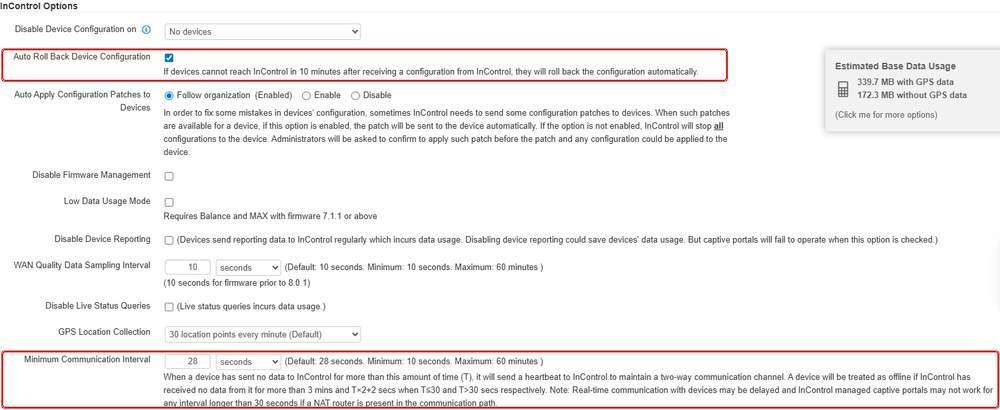
Auto Roll Back Device Configuration, and Minimum Communication Interval, which sets how quickly an unresponsive device is marked offline.
- 2.Tag pilot devices. Apply a tag to two or three devices and set the new rule set, profile or SSID to select that tag only.
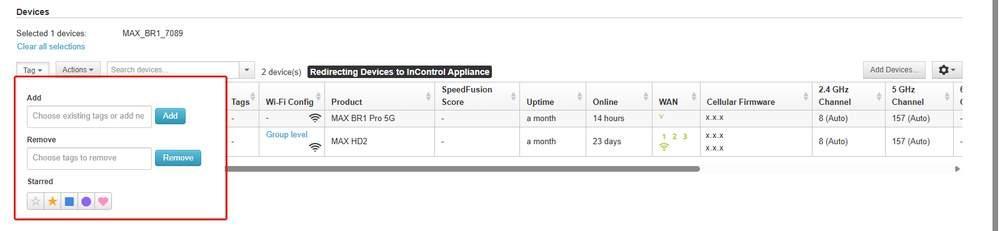
Step 2. On Device Management, tick the pilot devices, open Tag, and add the pilot tag in the Add box. The current selection is named above the grid.
- 3.Confirm delivery. Last Config Applied on the device grid shows when configuration last reached each device (see 10.1.3 The Devices Grid). Device Details shows a badge for each area InControl 2 manages, for example OBP, Outbound Policy is being managed. See 14.1.2 Status Badges on the Heading Line.

Step 3. Each badge after the device name marks an area InControl 2 manages on that device, for example OBP for Outbound Policy.
- 4.Extend in stages. Once the pilot devices work correctly, add the tag to more devices, or change the selection to the whole group.
- 5.Plan the rollback. The Operation Log records the old and new values, so a previous setting can be restored manually. See 13.18 Operation Log (Group Level).
For firmware:
- 1.Leave Upgrade only selected so that no device is moved to an older version.
- 2.Set the new version on one group, or pin it on a few devices on Device > Settings > Firmware Management (16.1 Firmware Management), before applying it more widely.
- 3.Check Devices not following the policy: and Pending Firmware Update Schedules on the group's Firmware Policy. See 13.9 Firmware Policy (Group Level).
- 4.To return one device to its previous version, use Reboot to last firmware on that device. See 16.1 Firmware Management.
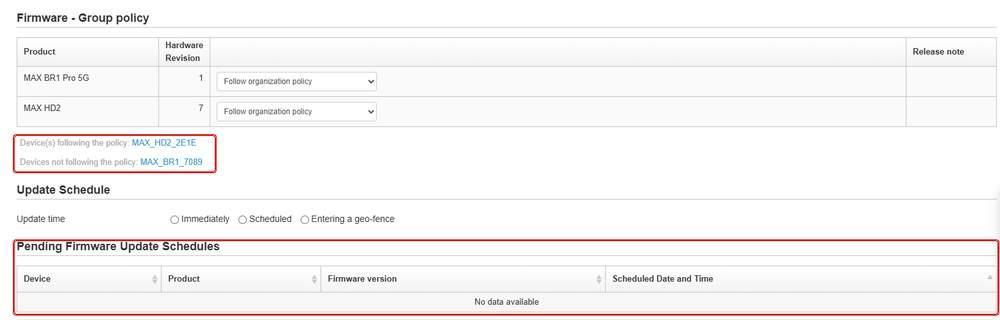
After a rollout, the devices listed under Devices not following the policy have not yet updated. Pending Firmware Update Schedules lists queued updates.
Which firmware setting applies
Firmware is set at three levels, as summarized below.
Where | Setting | Effect |
Organization > Organization Settings > Firmware Policy | A version, per product and hardware revision | Applies to the groups listed under Groups following on that row, which are the groups whose own row is set to Follow organization policy |
Group > Settings > Firmware Policy | Follow organization policy, the default value of each row | The group takes the organization policy for that product. See 9.6 Firmware Policy (Organization Level) |
Group > Settings > Firmware Policy | A version, Firmware management disabled or Custom | The group's own setting applies for that product, and the group appears under Groups not following on the organization row |
Device > Settings > Firmware Management | Follow group policy | The device takes the firmware set by the group firmware policy. See 16.1.2 Applying Firmware |
Device > Settings > Firmware Management | A version and build | Pins the device to that firmware |
Device > Settings > Firmware Management | Custom | The device does not follow the group policy and does not receive the firmware specified on the group policy page. See 16.1.3 Custom |
Upgrade only is available at all three levels and determines which devices a selected version reaches. See 13.9 Firmware Policy (Group Level).
Caution: A setting saved at group level reaches every device it selects when it is saved. A setting saved at organization level reaches every group. Changes made on the device itself in an area InControl 2 manages are replaced by the InControl 2 settings.
17.5. Glossary
The following terms are specific to InControl 2 or have a specific meaning in its reports.
Term | Meaning | Full detail | See |
Offline | InControl 2 has received nothing from the device for more than 3 minutes when the reporting interval is 30 seconds or less, or for more than twice the interval plus 2 seconds when it is longer | Settings (Group Level), InControl Options | |
Uptime and Online | Uptime counts from when the device started. Online counts from when its current connection to InControl 2 began. A device that reconnects keeps its uptime and restarts its online figure | Device Level Management | |
Device Availability | The proportion of the day the device was running: its uptime in the day divided by the length of the day | Device Reports | |
Internet Availability | The proportion of that running time in which the device could reach InControl 2. It does not measure any one WAN and is not an ISP uptime figure | Device Reports | |
Connection availability | The uptime of one WAN or SpeedFusion connection in a month. Time while the device itself was offline is not counted as downtime | Device Reports, Connection Up/Down History | |
Priority-1 down WANs | One or more WANs in priority 1 are down. A device can show this while still online over another WAN | Group Dashboard | |
Event Log and Operation Log | The Event Log holds events reported by devices, such as WAN up and down. The Operation Log holds changes made by administrators | Reports, Settings (Group Level) | 11.11 Event Log (Group Level), 13.18 Operation Log (Group Level) |
Log Archive | Daily archive files of the Event Log, covering 12 months at device level and 24 months at group level, with a delay of about 3 days | Reports | |
Upgrade only | Applies a firmware version only to devices on a lower version. When cleared, it also moves devices on a newer version back to the selected version | Settings (Organization Level), Firmware Policy | |
Carrier Pool and Custom Pool | The system generates one carrier pool for each carrier. A custom pool is defined by the user, with its own quota and alerts | Organization Reports | |
Tag | A label on a device. Most group settings select their devices by tag | Settings (Group Level) | |
Organization | The top level. It holds groups, organization-wide settings, and every device the organization owns | Getting Started | |
Group | The level inside an organization that holds devices and the settings that apply to them. A setting made at group level applies to every device in that group | Getting Started | |
Manage gate | The Manage ... or Managed checkbox on a group screen. Until it is ticked and saved, InControl 2 does not change that setting on any device | Network Settings | 8.1 How Group Management Works, 8.1.1 Before You Tick a Manage Checkbox |
SpeedFusion VPN | Bonds several WAN connections into one virtual link between two Peplink endpoints, which can be two devices or a device and a FusionHub | SpeedFusion VPN | |
SpeedFusion Connect | A subscription separate from PrimeCare, with its own Expire in date. Device Details, Status, shows its maximum throughput, remaining data quota and peers. A SpeedFusion Connect link appears by location name, for example Singapore (SIN) | Device Level Management | |
PrimeCare and EssentialCare | Device subscriptions. Either one is required to install an eSIM. An expired subscription shows a red notice under the device name, for example PrimeCare expired | eSIM and SIM Management, Settings (Organization Level) | 6.1.7 Install an eSIM on One Device, 9.9 Subscriptions and Licenses |
InTouch | Saved entries for cameras, controllers and other equipment on the LAN behind a device, reached from InControl 2 over http, https, ssh, telnet, rdp or vnc under a saved name rather than a raw address | Device Level Tools | |
Remote Web Admin | Opens a device's own web administration interface through InControl 2, including devices behind carrier NAT. The device must be online | Device Level Tools | |
FusionHub | A supported Peplink device, in Solo, Essential and Pro editions, that can be one end of a SpeedFusion VPN link. Its licence is tied to virtual hardware IDs unique to each FusionHub or VM instance | Settings (Organization Level), Subscriptions and Licenses | |
Auto Roll Back | Auto Roll Back Device Configuration. If a device cannot reach InControl 2 within 10 minutes of receiving a configuration, it rolls the configuration back automatically. It reacts only to lost contact with InControl 2, not to other services at the site | Settings (Group Level), InControl Options |