
5. Advanced Feature Summary
5.1. Drop-in Mode and LAN Bypass: Transparent Deployment

As your organization grows, it may require more bandwidth, but modifying your network can be tedious. In Drop-in Mode, you can conveniently install your Peplink router without making any changes to your network. For any reason your Peplink router loses power, the LAN Bypass will safely and automatically bypass the Peplink router to resume your original network connection.
5.2. QoS: Clearer VoIP
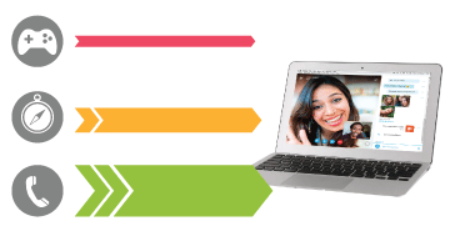
VoIP and videoconferencing are highly sensitive to latency. With QoS, Peplink routers can detect VoIP traffic and assign it the highest priority, giving you crystal-clear calls.
5.3. Per-User Bandwidth Control
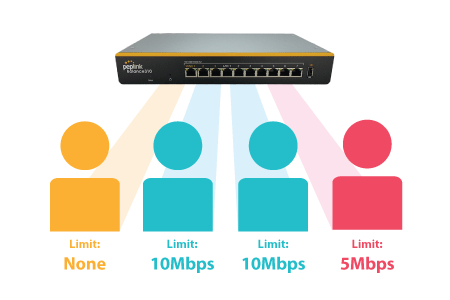
With per-user bandwidth control, you can define bandwidth control policies for up to 3 groups of users to prevent network congestion. Define groups by IP address and subnet, and set bandwidth limits for every user in the group.
5.4. High Availability via VRRP
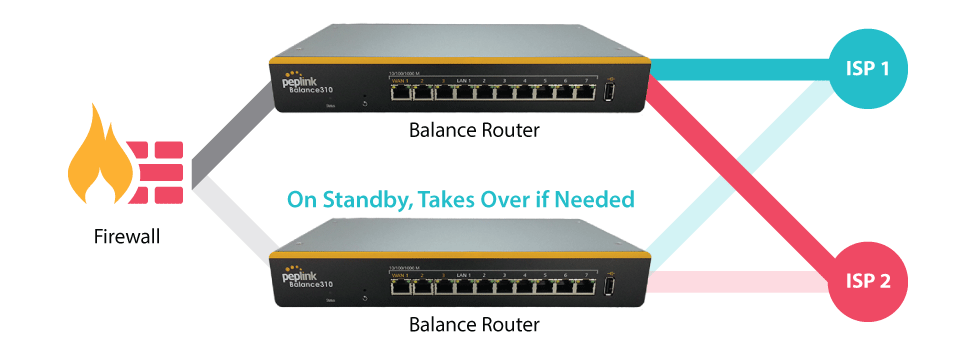
When your organization has a corporate requirement demanding the highest availability with no single point of failure, you can deploy two Peplink routers in High Availability mode. With High Availability mode, the second device will take over when needed.
5.5. USB Modem and Android Tethering
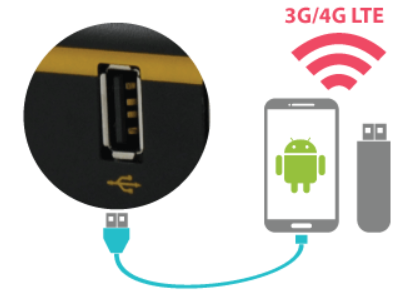
For increased WAN diversity, plug in a USB LTE modem as backup. Peplink routers are compatible with over 200 modem types. You can also tether to smartphones running Android 4.1.X and above.
By default, the USB port is in “USB Modem” mode. If you need to use it to connect to a USB Ethernet Adapter, you need to change it to “USB Ethernet” mode,
https://forum.peplink.com/t/can-i-use-ethernet-adapters-on-the-usb-wan/8327
5.6. Built-In Remote User VPN Support
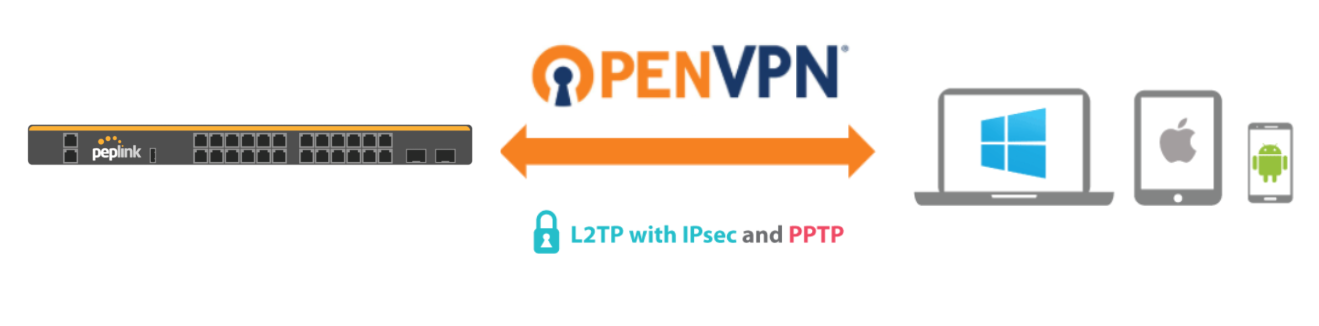
Use OpenVPN or L2TP with IPsec to safely and conveniently connect remote clients to your private network. L2TP with IPsec is supported by most devices, but legacy devices can also connect using PPTP.
Click here for the full instructions on setting up OpenVPN connections.
5.7. LACP NIC Bonding
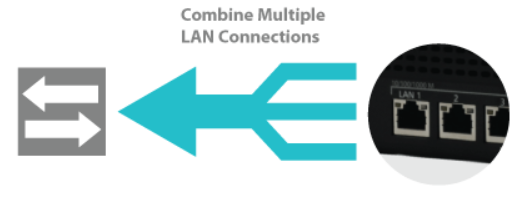
Use 802.3ad to combine multiple LAN connections into a virtual LAN connection. This virtual connection has higher throughput and redundancy in case any single link fails.
5.8. KVM Virtualization
KVM is a virtualisation module that allows administrators using our routers to host a large range of virtual machines. KVM is now supported by some of the MediaFast / ContentHub routers.
Click here for the full instructions on how to set up KVM.
Click here for the full instructions on how to set up KVM with USB Storage.
5.9. DPI Engine
The DPI report written in the updated KB article will show further information on InControl2 through breaking down application categories into subcategories.
5.10. NetFlow
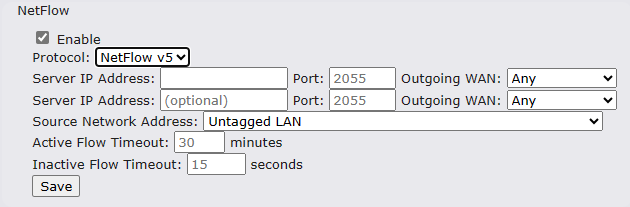
NetFlow protocol is used to track network traffic. Tracking information from NetFlow can be sent to the NetFlow collector, which analyzes data and generates reports for review.
Note: To enable this feature, go to https://<Device's IP>/cgi-bin/MANGA/support.cgi
5.11. Wi-Fi Air Monitoring
Peplink routers support Wi-Fi “Air Monitoring Mode” which is used to troubleshoot remotely and proactively monitor Wi-Fi and WAN performance. After enabling Wi-Fi Air Monitoring, reports can be viewed under InControl 2 > Reports > AirProbe Reports.
Note: To enable this feature, go to https://<Device's IP>/cgi-bin/MANGA/support.cgi

5.12. SP Default Configuration
The SP Default Configuration feature written in the updated KB article allows for the provisioning of custom made settings (a.k.a. InControl2 configuration) via the Ethernet LAN port and is ideal for those wanting to do a bulk deployment of many Peplink devices.
Note: If you would like to use this feature, please contact your purchase point (Eg.VAD).
5.13. Peplink Relay
Cloud Service Providers often restrict access to certain applications. With SFC Relay, you can route traffic before going out to the Internet, allowing access to previously restricted applications experienced with the public SpeedFusion Cloud nodes. Available as an add-on for your enterprise branch router or as an upgradable license to your Peplink router, SFC Relay is sure to impress you and any peers you give access to. https://youtu.be/99XcwlDH-TA?si=BC2uo3vUKMgBzmD3
5.14. DNS Over HTTPS (DoH)
DoH provides the benefits of communicating DNS information over a secure HTTPS connection in an encrypted manner. The protocol offers increased privacy and confidentiality by preventing data interception and man-in-the-middle attacks.
5.15. Peplink InTouch
InTouch is Peplink’s zero-touch remote network management solution, leveraging InControl 2 and a SpeedFusion Connect (formerly known as SpeedFusion Cloud) data plan. This service extends a network administrator’s ability to reach any device UI backed by a Peplink/Pepwave router. To configure InTouch, all you need is a valid InControl 2 subscription, a SpeedFusion Connect data plan, and a Peplink/Pepwave router (which requires the latest 8.2.0 firmware).
To watch a demonstration and read the FAQ, visit https://www.peplink.com/enterprise-solutions/intouch/
Or learn to configure InTouch at https://youtu.be/zg0iavHGkJw
5.16. Synergy Mode
Synergy mode is a cascade of multiple devices and combines the number of WANs to a single device virtually. All the WANs on the Synergized Device will appear as native WAN interfaces at the Synergy Controller and it can be managed like the built-in WAN interfaces.
5.17. Virtual WAN on VLAN
The Virtual WAN Activation License allows you to create 1 x virtual WAN on a particular VLAN, on either WAN or LAN interface. This means that you can create a virtual WAN on VLAN for a WAN port, or a virtual WAN on VLAN for a LAN port.