
20. Edge Computing
ContentHub allows you to deliver webpages and applications to users connected to the SSID using the local storage on your router, like the MAX HD2/HD4 with MediaFast, which can store up to 8GB of media. Users will be able to access news, articles, videos, and access your web app without the need for internet access.
The ContentHub can be used to provide infotainment to connected users on transport.
20.1. Configuring the ContentHub
ContentHub storage needs to be configured before content can be uploaded to the ContentHub. Click on the link on the information panel to configure storage.

To access ContentHub, navigate to Advanced > ContentHub and check the Enable box.
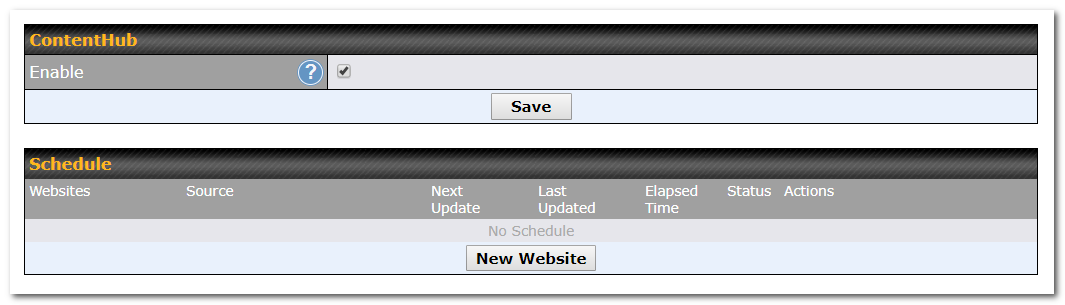
On an external server, configure content (a website or application) that will be synced to the ContentHub. For example, an html5 website.
To configure a website or application as content, follow the steps below.
20.2. Configure a Website for ContentHub
This option allows you to sync a website to the Peplink router. This website will then be published with the specified domain from the router itself and makes the content available to the client via the HTTP/HTTPS protocol.
Only FTP sync is supported for this type of ContentHub content.
The content should be uploaded to an FTP server before you sync it with ContentHub.
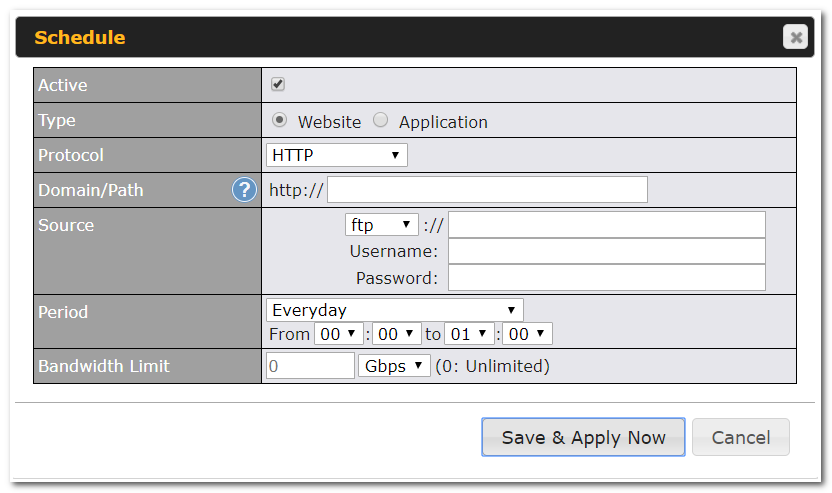
Click New Website and a window with the following configuration options will appear:
Schedule | |
Active | Checking the box toggles the activation of the content. |
Type | Select the type of content: Website or Application. |
Protocol | Configure the protocol to be used: HTTP, HTTPS or both. |
Domain/Path | Enter the URL for the ContentHub to use as the domain name for client access (such as http://mytest.com). |
Method | Only applicable for Application type content. Choose between sync or file upload. |
Source | Enter the details of the server that the content will be downloaded from. Enter credentials under Username and Password. |
Period | This field determines how often the router will search for updates to the source content. |
Bandwidth Limit | Set a bandwidth limit for clients. |
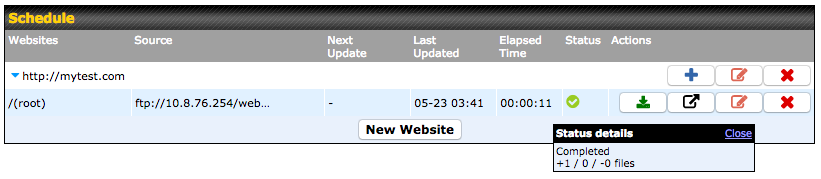
Click “Save & Apply Now” to activate the changes. A screenshot of the display after configuration is shown below:

The content will be synced regularly according to the time set in the Period that was configured earlier.
If you want to activate the sync manually, you can click the “ ” icon. The “Status” column will display the sync progress. When the sync is completed, a summary will be displayed, as shown in the screenshot below:
To access the content, open a browser in the MFA’s client and enter the domain details that were configured earlier (such as http://mytest.com).
20.3. Configure an Application for ContentHub
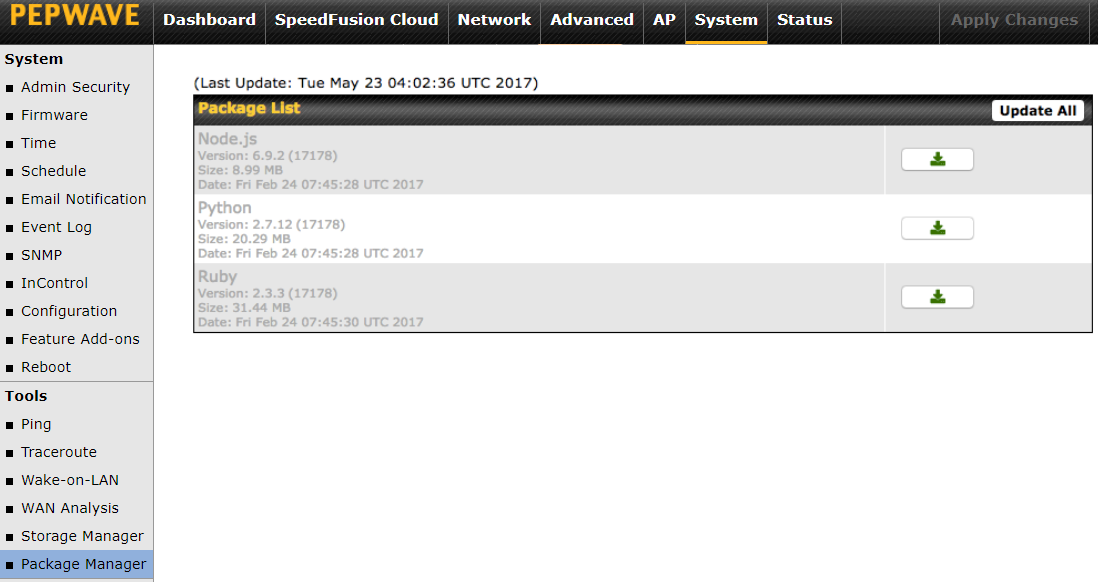
MediaFast routers allow you to configure and publish any application from the router itself by using one of the supported frameworks below:
- Python (version 2.7.12)
- Ruby (version 2.3.3)
- Node.js (version 6.9.2)
Install the desired framework under “Package Manager” as shown below:
After installing the framework, change the “Type” to “Application” and configure the website.
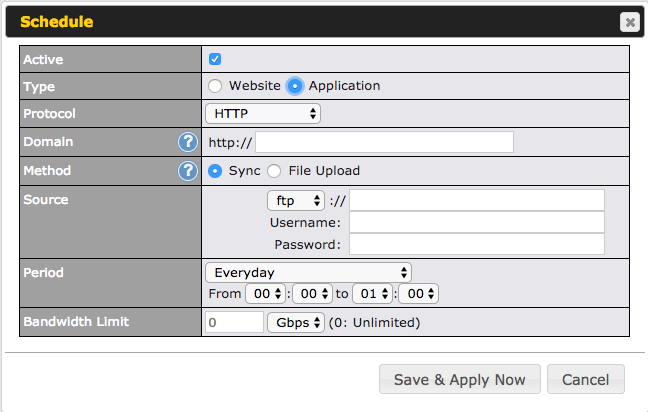
The setting is the same as the Website type (refer to the description in the section above).
Application type content needs to be packed as explained below:
- 1.Implement two bash script files, start.sh and stop.sh in the root folder, to start and stop your application. The MediaFast router will only execute start.sh and stop.sh when the corresponding website is enabled and disabled respectively.
- 2.Compress the application files and the bash script to .tar.gz format.
- 3.Upload this tar file to the router.