19. Media Fast
MediaFast settings can be configured from the Advanced menu.
19.1. Setting Up MediaFast Content Caching
To access MediaFast content caching settings, select Advanced > Cache Control.
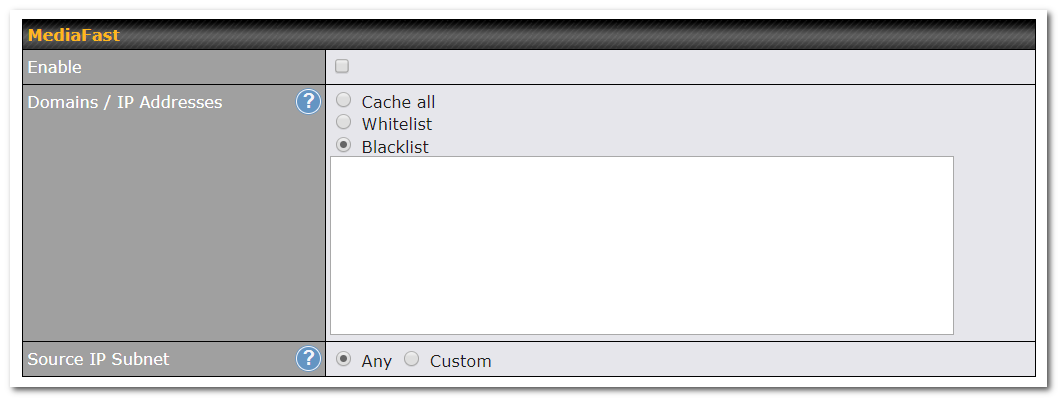
MediaFast | |
Enable | Click the checkbox to enable MediaFast content caching. |
Domains / IP Addresses | Choose to Cache on all domains, or enter domain names and then choose either Whitelist (cache the specified domains only) or Blacklist (do not cache the specified domains). |
Source IP Subnet | This setting allows caching to be enabled on custom subnets only. |
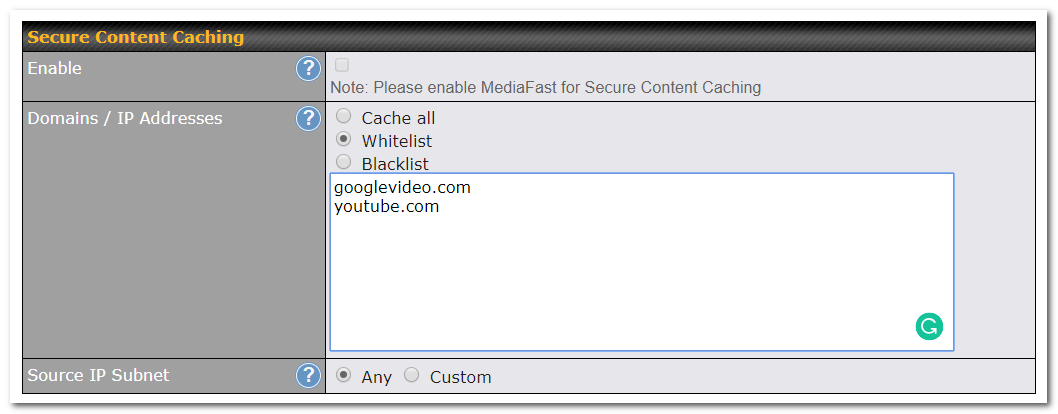
The Secure Content Caching menu operates identically to the MediaFast menu, except it is for secure content caching accessible through https://.
In order for MediaFast devices to cache and deliver HTTPS content, every client needs to have the necessary certificates installed*.
*See https://forum.peplink.com/t/certificate-installation-for-mediafast-https-caching/
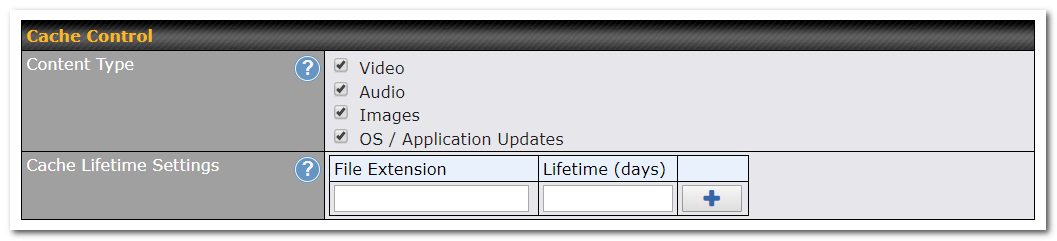
Cache Control | |
Content Type | Check these boxes to cache the listed content types or leave boxes unchecked to disable caching for the listed types. |
Cache Lifetime Settings | Enter a file extension, such as JPG or DOC. Then enter a lifetime in days to specify how long files with that extension will be cached. Add or delete entries using the controls on the right. |
19.2. Viewing MediaFast Statistics
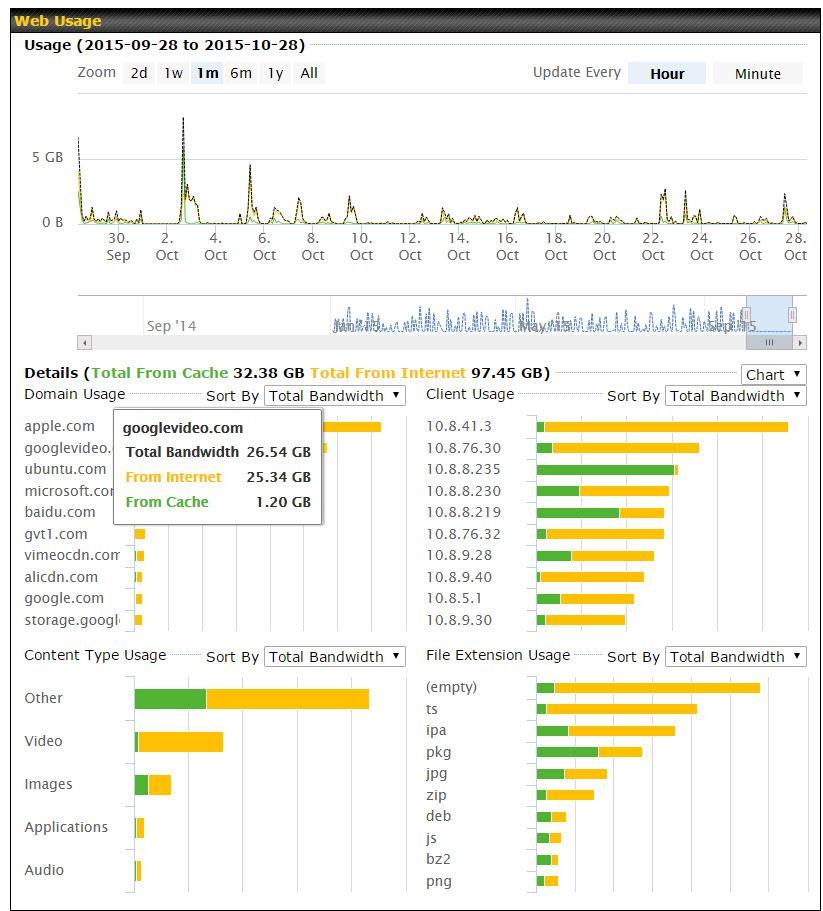
To get details on storage and bandwidth usage, select Status > MediaFast.
19.3. Prefetch Schedule
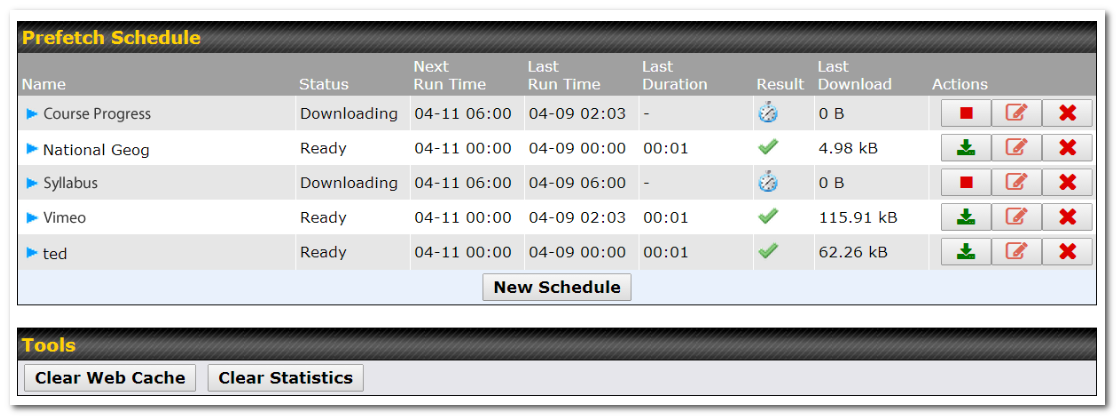
Content prefetching allows you to download content on a schedule that you define, which can help to preserve network bandwidth during busy times and keep costs down. To access MediaFast content prefetching settings, select Advanced > Prefetch Schedule.
Prefetch Schedule Settings | |
Name | This field displays the name given to the scheduled download. |
Status | Check the status of your scheduled download here. |
Next Run Time/Last Run Time | These fields display the date and time of the next and most recent occurrences of the scheduled download. |
Last Duration | Check this field to ensure that the most recent download took as long as expected to complete. A value that is too low might indicate an incomplete download or incorrectly specified download target, while a value that is too long could mean a download with an incorrectly specified target or stop time. |
Result | This field indicates whether downloads are in progress ( |
Last Download | Check this field to ensure that the most recent download file size is within the expected range. A value that is too low might indicate an incomplete download or incorrectly specified download target, while a value that is too long could mean a download with an incorrectly specified target or stop time. This field is also useful for quickly seeing which downloads are consuming the most storage space. |
Actions | To begin a scheduled download immediately, click To cancel a scheduled download, click To edit a scheduled download, click To delete a scheduled download, click |
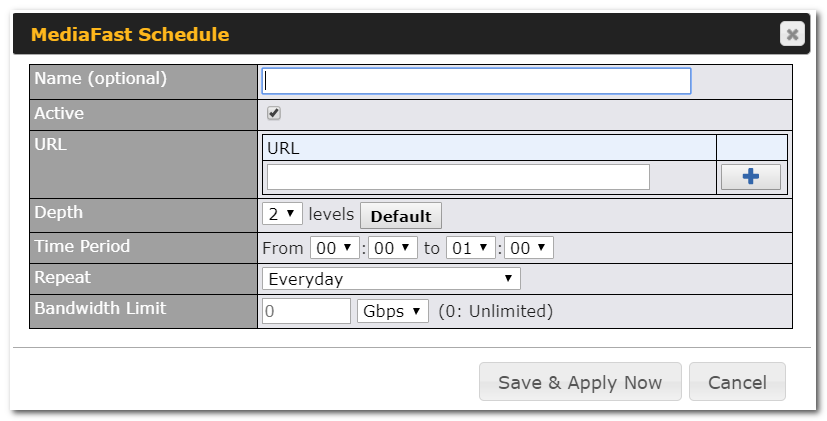
New Schedule | Click to begin creating a new scheduled download. Clicking the button will cause the following screen to appear:
Simply provide the requested information to create your schedule. |
Clear Web Cache | To clear all cached content, click this button. Note that this action cannot be undone. |
Clear Statistics | To clear all prefetch and status page statistics, click this button. |
 ) or complete (
 ).
 .
 .
 .
 .